Upgrade & Secure Your Future with DevOps, SRE, DevSecOps, MLOps!

We spend hours on Instagram and YouTube and waste money on coffee and fast food, but won’t spend 30 minutes a day learning skills to boost our careers.
Master in DevOps, SRE, DevSecOps & MLOps!

Learn from Guru Rajesh Kumar and double your salary in just one year.

Get Started Now!

How to Easily Backup Your WordPress Site Using UpdraftPlus: A Step-by-Step Guide

To easily backup your WordPress site using UpdraftPlus, follow these step-by-step instructions:

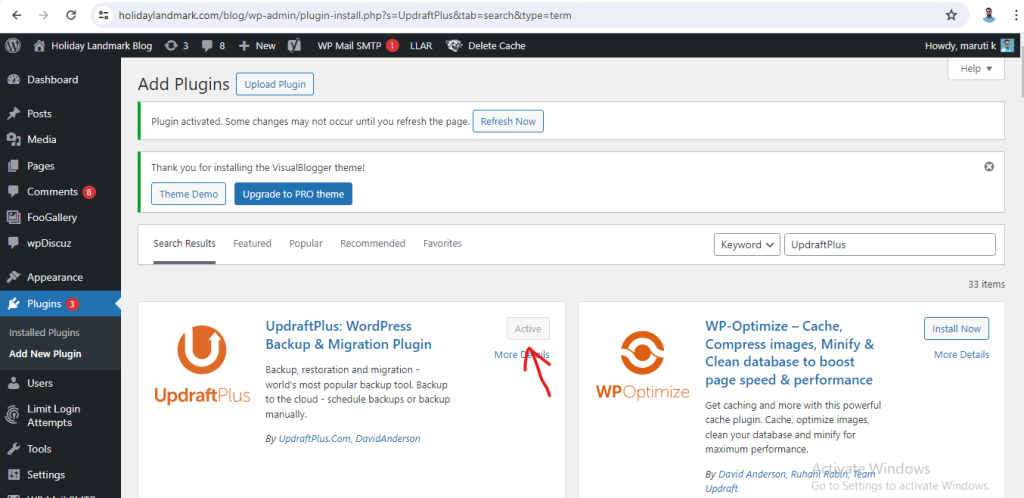
  1. Install and activate the UpdraftPlus plugin on your WordPress site. You can do this by navigating to the “Plugins” section in your WordPress dashboard and clicking on “Add New.” Search for UpdraftPlus and click on “Install Now” followed by “Activate.”
2. Once the plugin is activated, go to the UpdraftPlus settings by clicking on “Settings” > “UpdraftPlus Backups” in your WordPress dashboard.

3. In the UpdraftPlus settings, you can configure your backup settings such as how often you want to back up your site, where you want to store the backups, and what files you want to include in the backup.
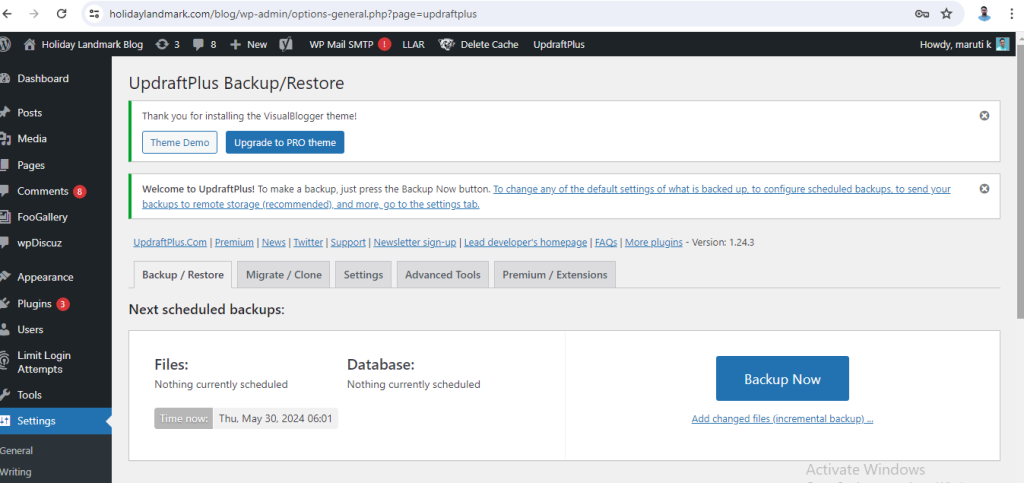
4. To manually back up your site, click on the “Backup Now” button. UpdraftPlus will then start backing up your site’s files and database.

5. You can also schedule automatic backups by setting the frequency of backups in the UpdraftPlus settings.

6. To restore your site from a backup, go to the “Existing Backups” tab in the UpdraftPlus settings and click on the “Restore” button next to the backup you want to restore from.

By following these steps, you can easily backup and restore your WordPress site using UpdraftPlus, ensuring that your site’s data is safe and secure.

Related Posts

Top 10 Web Browsers: Features, Pros, Cons & Comparison

Introduction Web browsers are software applications that allow users to access, navigate, and interact with content on the internet. They are essential for browsing websites, streaming media, Read More

Read More

Top 10 Internet Filtering Software: Features, Pros, Cons & Comparison

Introduction Internet filtering software allows families, schools, and businesses to control access to web content, block unsafe websites, and enforce browsing policies. These tools help reduce exposure Read More

Read More

Top 10 Ad Blocking Tools: Features, Pros, Cons & Comparison

Introduction Ad blocking tools are software applications or browser extensions that prevent unwanted advertisements from appearing during browsing or within apps. By filtering out banners, pop‑ups, video Read More

Read More

Top 10 Parental Control Software: Features, Pros, Cons & Comparison

Introduction Parental control software helps parents monitor, manage, and protect their children’s online activities. These tools provide features like content filtering, screen time management, app monitoring, and Read More

Read More

Top 10 Child Safety Monitoring Apps: Features, Pros, Cons & Comparison

Introduction Child safety monitoring apps help parents and guardians keep children safe in the digital and physical world. These tools offer monitoring of online activity, location tracking, Read More

Read More

Top 10 Password Vault Consumer Apps: Features, Pros, Cons & Comparison

Introduction Password vault consumer apps are digital tools that help individuals securely store, manage, and autofill passwords for websites and apps. They reduce the risk of forgotten Read More

Read More
Subscribe
Notify of
guest
0 Comments
Oldest
Newest Most Voted
0
Would love your thoughts, please comment.x
()
x