Upgrade & Secure Your Future with DevOps, SRE, DevSecOps, MLOps!

We spend hours on Instagram and YouTube and waste money on coffee and fast food, but won’t spend 30 minutes a day learning skills to boost our careers.
Master in DevOps, SRE, DevSecOps & MLOps!

Learn from Guru Rajesh Kumar and double your salary in just one year.

Get Started Now!

How to create a new course in Moodle?

Creating a new course in Moodle involves several steps, typically performed by users with administrator, manager, or course creator privileges. Here’s a step-by-step guide:

Step 1: Log in as an Administrator or Course Creator
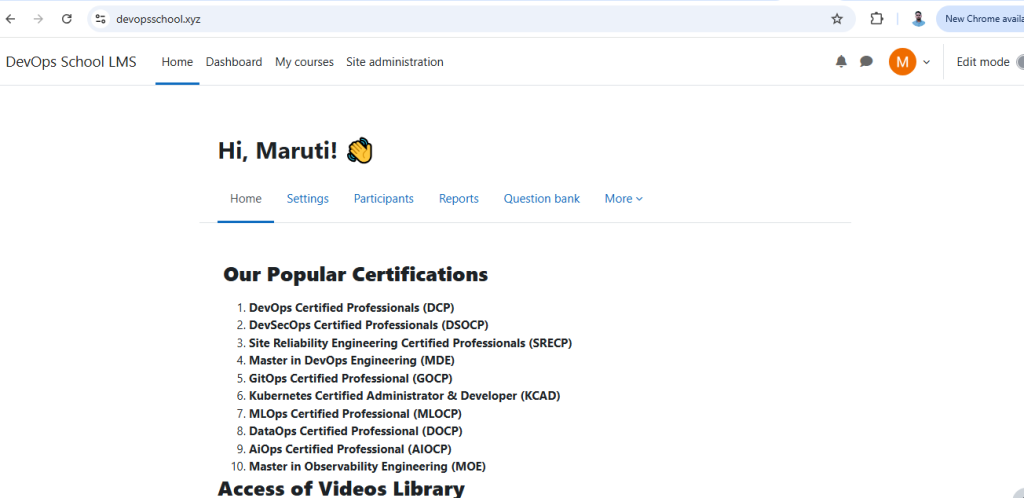
  • Ensure you have the necessary permissions to create courses.

Step 2: Access the Course Creation Page
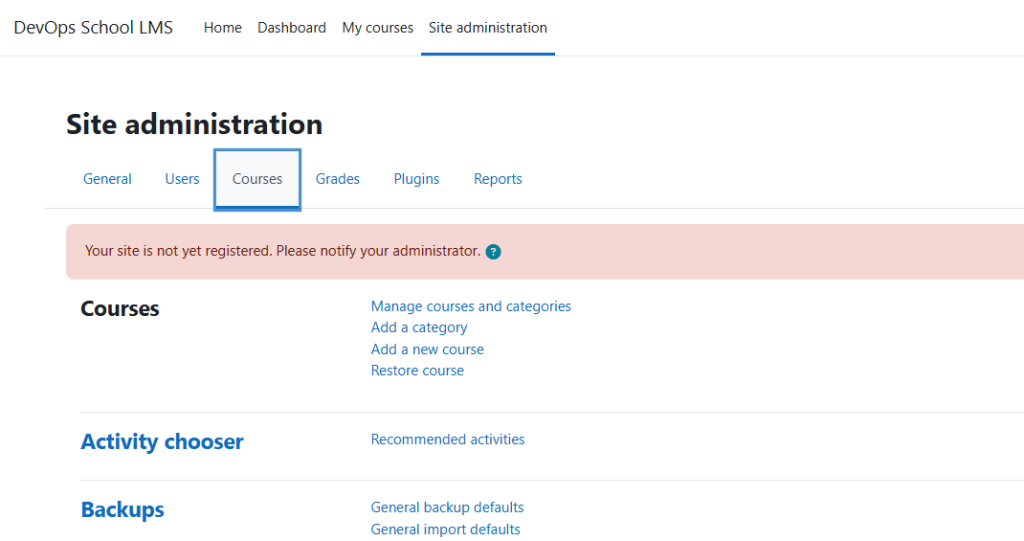
  1. Go to Site administration (from the left sidebar or the gear icon).
  2. Click on Courses > Manage courses and categories.
  3. Select the category where you want to add the new course (or create a new category first).

Step 3: Add a New Course
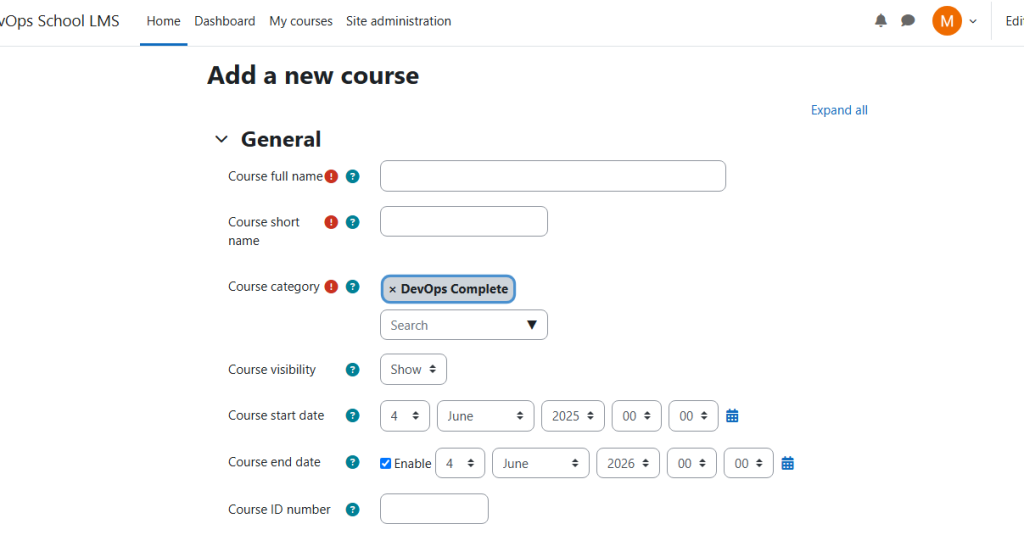
  1. Click Create new course.
  2. Fill in the required details:
  • Course full name (e.g., “Introduction to Python Programming”).
  • Course short name (e.g., “PY101” – used for navigation).
  • Course category (select from dropdown).
  • Course summary (a brief description visible in course listings).
  • Course format (Topics, Weekly, Social, etc.).
  • Start and end dates (optional).
  • Course ID number (optional, for external systems).

3. Click Save and display (or Save and return to go back to the course list).

    Step 4: Configure Additional Course Settings (Optional)

    After creation, you can further customize:

    • Enrollment methods (e.g., manual, self-enrollment, guest access).
    • Course completion settings (if tracking progress).
    • Groups and groupings (if using collaborative features).
    • Restrictions & access control (conditional availability).

    Step 5: Add Content and Activities

    • Click Turn editing on (top-right pencil icon).
    • Use the “+ Add an activity or resource” button to add:
    • Resources (Files, URLs, Pages).
    • Activities (Assignments, Quizzes, Forums, etc.).

    Step 6: Enroll Users

    • Go to Course administration > Users > Enrolled users.
    • Click Enroll users and select participants (students, teachers, etc.).

    Related Posts

    PHP opcode caching improves performance and lowers memory requirements, OPcache extension is recommended and fully supported.

    Yes, PHP opcode caching, particularly through the OPcache extension, significantly enhances the performance of PHP applications. Here’s how it works: Enabling OPcache on your server can lead Read More

    Read More

    The Zip PHP extension is now required by Moodle, info-ZIP binaries or PclZip library are not used anymore

    Starting from Moodle version 4.0, the Zip PHP extension is a mandatory requirement. This means that Moodle no longer relies on info-ZIP binaries or the PclZip library Read More

    Read More

    Wrong $CFG->dbtype. You need to change it in your config.php file from ‘mysqli’ to ‘mariadb’

    The error message you’re encountering indicates that the database type in your Moodle config.php file is set to ‘mysqli’, but it needs to be changed to ‘mariadb’. Read More

    Read More

    How to set up and manage course analytics and reporting in Moodle?

    Setting up and managing course analytics and reporting in Moodle involves configuring a set of tools and features that allow instructors and administrators to track and analyze Read More

    Read More

    How to set up and manage course social learning and networking in Moodle?

    Setting up and managing course social learning and networking in Moodle involves integrating various tools and features that allow students to interact, collaborate, and share knowledge. Below Read More

    Read More

    How to set up and manage course gamification and badges in Moodle?

    Setting up and managing gamification and badges in Moodle can be a great way to enhance student engagement and motivation. Here’s a step-by-step guide on how to Read More

    Read More
    Subscribe
    Notify of
    guest
    0 Comments
    Oldest
    Newest Most Voted
    Inline Feedbacks
    View all comments
    0
    Would love your thoughts, please comment.x
    ()
    x