Upgrade & Secure Your Future with DevOps, SRE, DevSecOps, MLOps!

We spend hours on Instagram and YouTube and waste money on coffee and fast food, but won’t spend 30 minutes a day learning skills to boost our careers.
Master in DevOps, SRE, DevSecOps & MLOps!

Learn from Guru Rajesh Kumar and double your salary in just one year.

Get Started Now!

Creating Your First Flutter Project: A Step-by-Step Guide

Creating your first Flutter project is an exciting journey into mobile app development. Here’s a step-by-step guide to help you get started:

1. Install Flutter

Before you create a project, you need to install Flutter on your machine.

  • Download Flutter: Go to the Flutter installation page and download the latest stable release of Flutter SDK for your operating system.
  • Extract the file: Extract the downloaded zip file to a desired location on your file system.
  • Update your path: Add the Flutter tool to your path. This process varies by operating system.
  • Verify installation: Open a terminal window and run flutter doctor. This command checks your environment and displays a report to the terminal window. The command output should indicate that there are no issues (a checkmark) for each section.

2. Set Up an Editor

You can use any editor you like for Flutter development, but Android Studio or Visual Studio Code are highly recommended because they provide Flutter app execution and debugging support.

  • Install an editor: Download and install Android Studio or Visual Studio Code.
  • Install the Flutter and Dart plugins: For Android Studio, install the Flutter plugin from the plugin marketplace. For VS Code, install the Flutter and Dart extensions from the VS Code Extensions Marketplace.

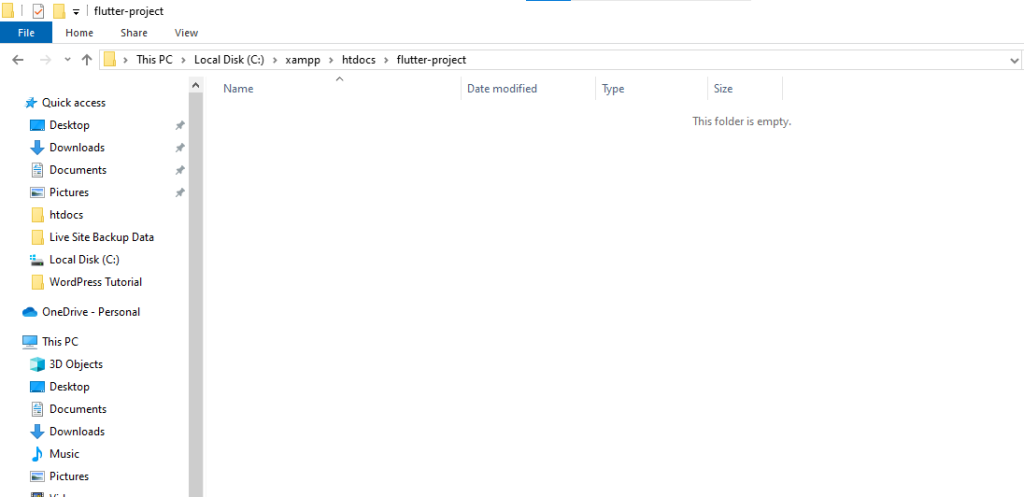
3. Choose a directory:

Decide where you want to create your Flutter project. It can be anywhere on your system, but it’s best to choose a location where you keep your development projects organized.
4. Navigate to the chosen directory:

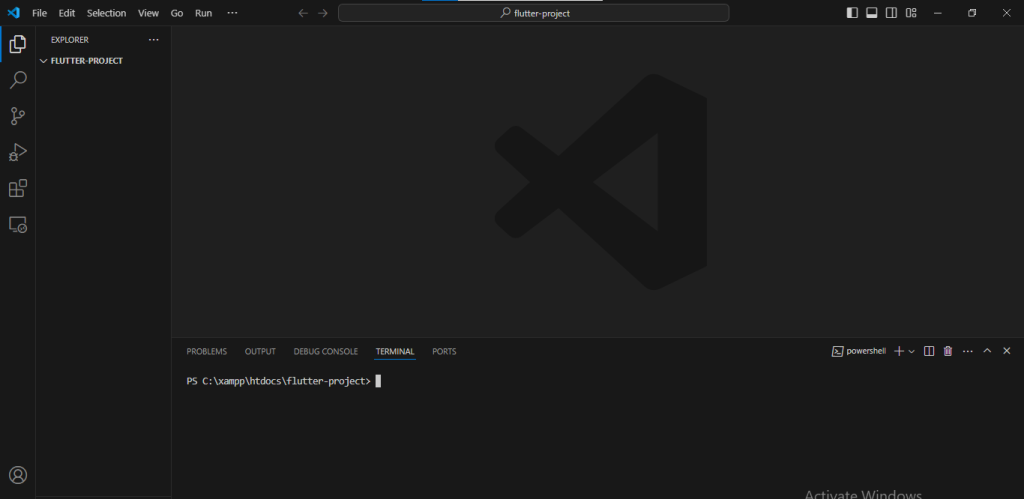
Open your terminal or command prompt and use the ‘cd’ command to navigate to the directory where you want to create your Flutter project. For example:

cd path/to/your/desired/directory
5. Create a New Flutter Project:

Open your terminal or command prompt and run the following command to create a new Flutter project:

flutter create my_first_app

6. Navigate to the project directory:

After creating the project, navigate into the project directory using the ‘cd’ command:

cd my_first_app
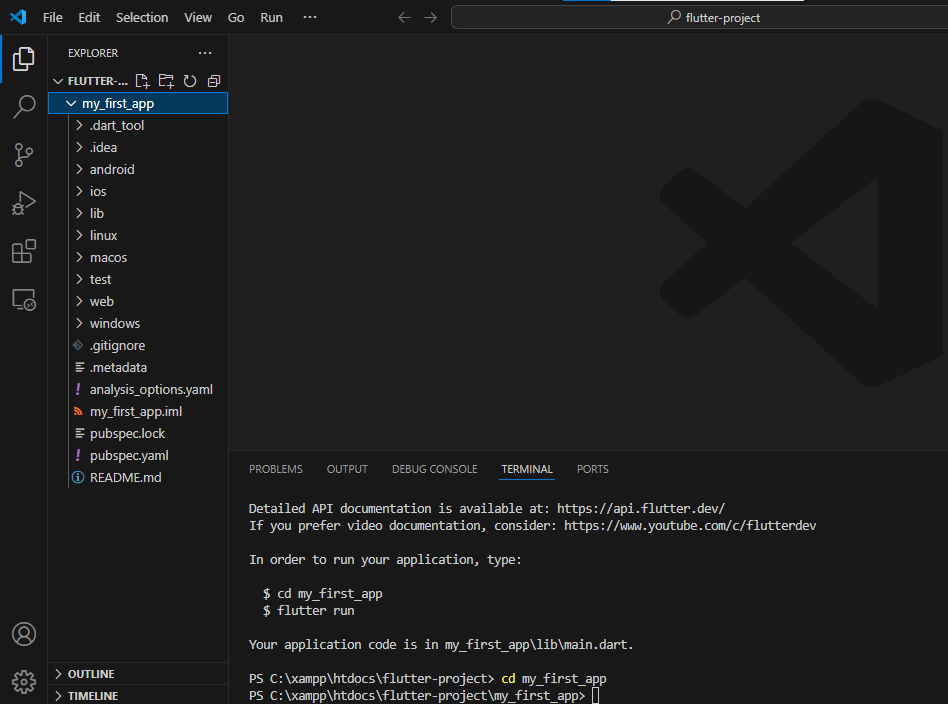
7. Run the project:

Once you’re inside your project directory, run the following command to launch your Flutter app:

flutter run

By following these steps, you’ll create your Flutter project outside of the Flutter SDK directory and be able to run it without any issues.

Related Posts

I am getting error “cmdline-tools component is missing” after installing Flutter and Android Studio… I added the Android SDK. How can I solve them?

Solution: Step 1: I fixed the problem by opening Android Studio. Step 2: Click to More Actions. Step 3: Then click on ‘SDK Manager’. Step 4: In Read More

Read More

What is Flutter? & How it is Better than it’s Counterparts? – Cross Platform

What is Flutter? Flutter is an open-source UI software development kit created by Google. It’s used to develop cross-platform applications for Android, iOS, Linux, Mac, Windows, Google Read More

Read More

What is flutter and How Flutter Works & Architecture

What is flutter? Flutter is an open-source UI software development kit created by Google. It is used to build natively compiled applications for mobile, web, and desktop Read More

Read More

Execution failed for task’:app:processDebugGoogleServices’.> No matching client found for package name’com.cotocus.holidaylandmark.publisher.holidaylandmark_publisher’ android studio-SOLVED

What went wrong: Execution failed for task ‘:app:processDebugGoogleServices’. No matching client found for package name ‘com.example.myapp ‘ Step -1: check your google-services.json and build.gradle matching applicationId and Read More

Read More

How to Make a Confirm Dialog in Flutter

A confirm dialog is a dialog box that asks users to approve the requested operation. It usually appears with button pairs like Yes/No, OK/Cancel, Agree/Disagree. Confirm dialogs Read More

Read More

Flutter Basic Query

Flutter Widgets Hello World Example Types of Widget We can split the Flutter widget into two categories: Visible (Output and Input) Invisible (Layout and Control) Visible widget Read More

Read More
Subscribe
Notify of
guest
0 Comments
Oldest
Newest Most Voted
Inline Feedbacks
View all comments
0
Would love your thoughts, please comment.x
()
x