Create a plugin to always display and center the current post’s featured image
Here’s an example of a plugin that you can use to always display and center the current post’s featured image in WordPress:
Step 1: Create a new directory in your WordPress plugins folder. Let’s name it center-featured-image.
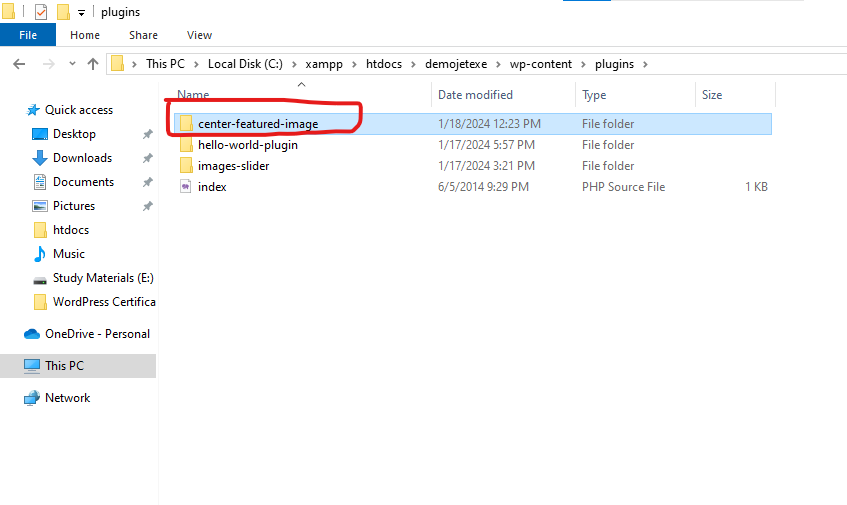
Step 2: Inside the center-featured-image directory, create a PHP file (e.g., center-featured-image.php) with the following code:
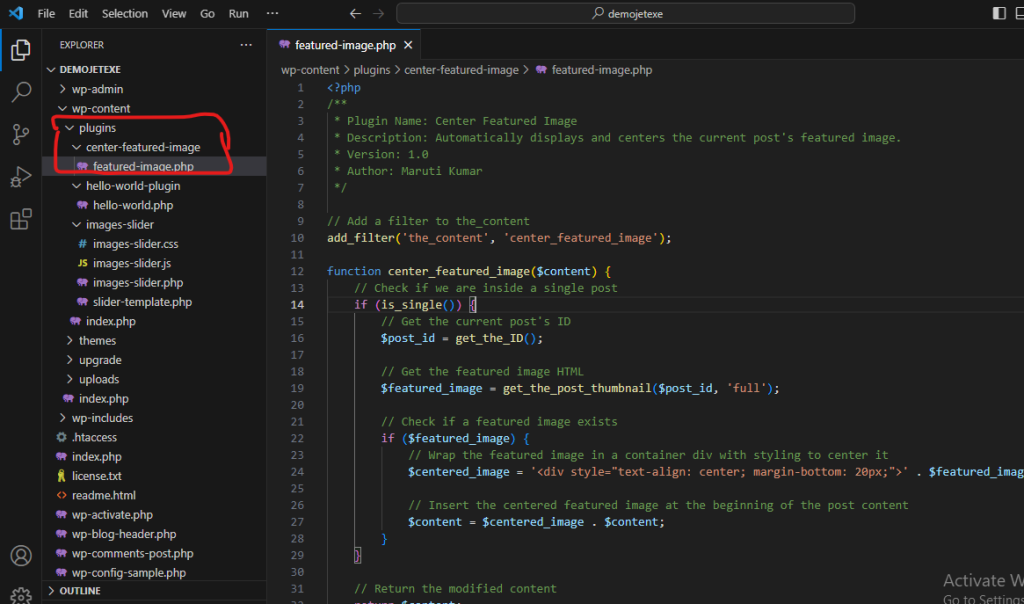
Step 3: Open the featured-image.php file and add the following code:
<?php
/**
 * Plugin Name: Center Featured Image
 * Description: Automatically displays and centers the current post's featured image.
 * Version: 1.0
 * Author: Maruti Kumar
 */

// Add a filter to the_content
add_filter('the_content', 'center_featured_image');

function center_featured_image($content) {
    // Check if we are inside a single post
    if (is_single()) {
        // Get the current post's ID
        $post_id = get_the_ID();

        // Get the featured image HTML
        $featured_image = get_the_post_thumbnail($post_id, 'full');

        // Check if a featured image exists
        if ($featured_image) {
            // Wrap the featured image in a container div with styling to center it
            $centered_image = '<div style="text-align: center; margin-bottom: 20px;">' . $featured_image . '</div>';

            // Insert the centered featured image at the beginning of the post content
            $content = $centered_image . $content;
        }
    }

    // Return the modified content
    return $content;
}
Step 3: Save the file and Log in to your WordPress dashboard and go to “Plugins” in the left-hand menu.
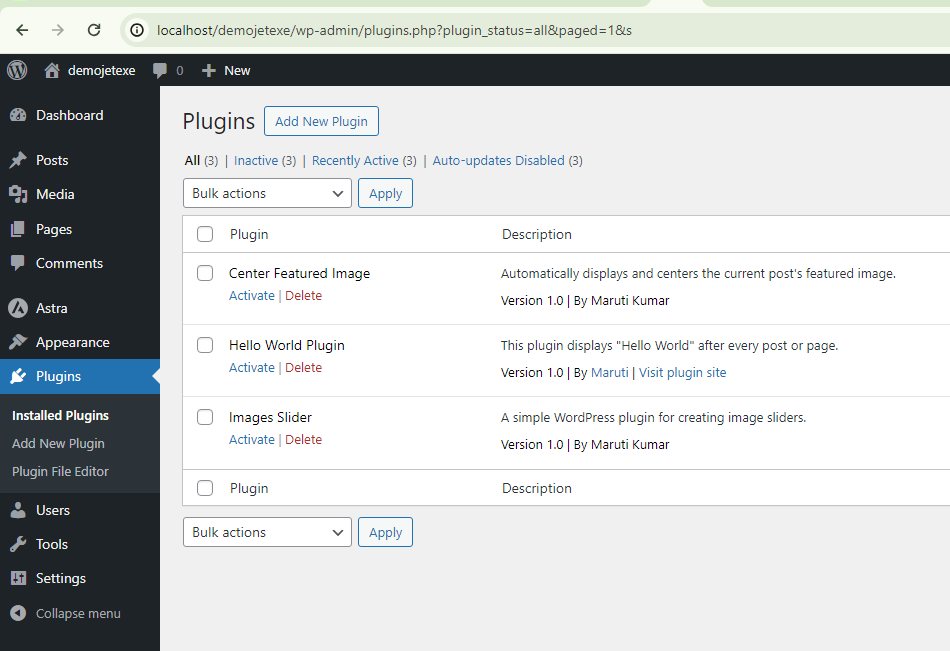
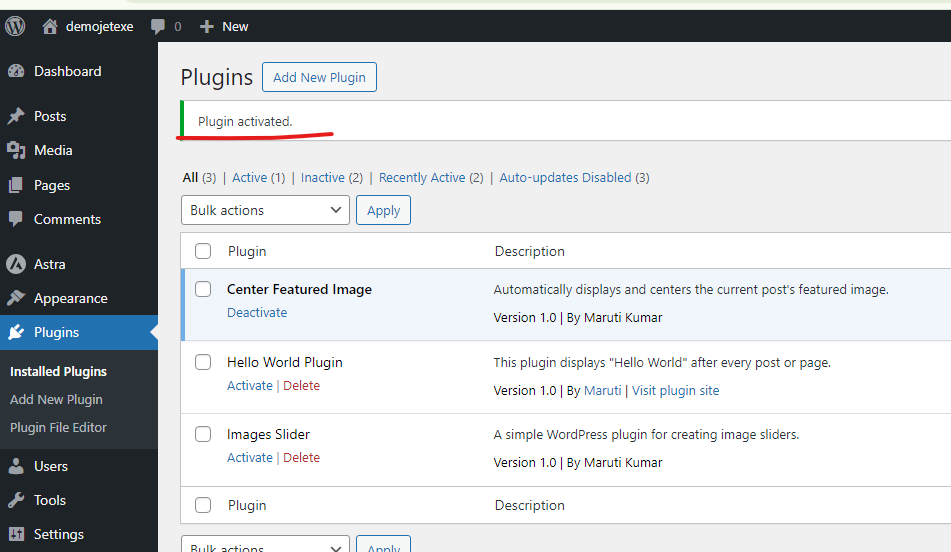
Step 4: Find “Featured Image Plugin” in the plugins list and click on “Activate”.
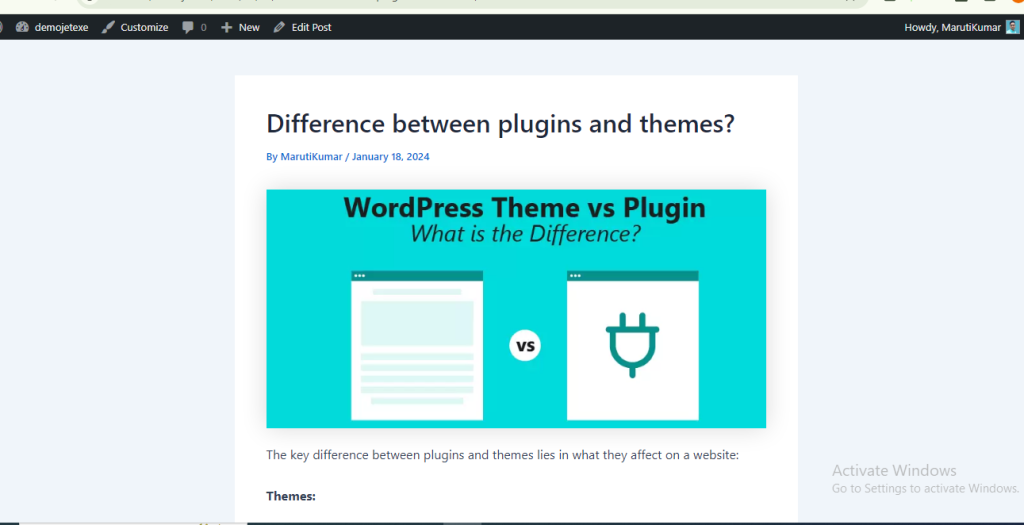
Now, whenever you open a post in your WordPress site, the plugin will automatically display and center the featured image at inside of the title post content.
Thank for visiting

How to Enhance Comment Security on WordPress Using WPDiscuz and CAPTCHA
Here’s a step-by-step guide to adding CAPTCHA to your WordPress comment section using WPDiscuz to enhance security: Step 1: Install WPDiscuz Plugin Step 2: Install Google reCAPTCHA Read More