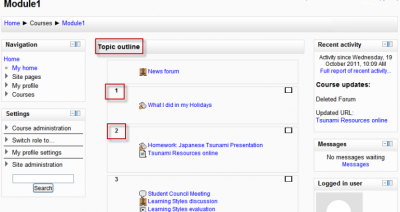
Creating and managing course sections and topics in Moodle involves organizing your course content effectively for your students. Here’s a step-by-step guide to help you through the process.
Step 1: Log in to Moodle
- Go to your Moodle site.
- Log in using your instructor/teacher credentials.
Step 2: Access Your Course
- After logging in, navigate to the Course where you want to create sections and topics.
- You can do this from the Dashboard or the Courses section.
Step 3: Turn Editing On
- In your course homepage, click on the gear icon (settings) in the top right corner.
- Select Turn editing on. This will enable you to modify the course structure and content.
Step 4: Add Course Sections
A section in Moodle acts as a container for organizing topics. You can structure your course into multiple sections, such as weekly topics or thematic blocks.
To add a new section:
- Scroll to the bottom of your course page.
- Click on Add section (if available).
- You can then adjust the number of sections as needed from the course settings or by clicking the section add button.
Managing Sections:
- Rearranging Sections: To rearrange the sections, use the drag-and-drop feature by clicking the section title bar and moving it to the desired location.
- Hide/Show Sections: To make a section visible or invisible, click the eye icon next to the section’s title.
Step 5: Add Topics to a Section
Each section can hold multiple topics such as assignments, quizzes, resources, etc. You can name and organize topics based on your teaching schedule or subject matter.
To add a topic within a section:
- In each section, click the Add an activity or resource link.
- Choose the type of content you want to add (e.g., a quiz, a file, a forum, etc.).
- Fill out the necessary details, such as the name, description, and other settings.
- Click Save and return to course or Save and display to return to the course page.
Step 6: Organize and Categorize Content
- Topic Names: You can edit the name of the section or topic to reflect the subject or week (e.g., “Week 1: Introduction to Biology”).
- Subtopics: If you have a lot of content for one topic, you can organize it by creating subtopics using resources like labels or multimedia.
Step 7: Use the Course Settings for Customization
To modify how the sections are displayed:
- Go to the Course settings (gear icon > Edit settings).
- Adjust the number of sections, their appearance, and whether the course follows a weekly format or a topics format.
- You can also set the visibility, activity completion rules, and course layout.
Step 8: Add Resources or Activities to Topics
You can add different types of content under each section or topic.
To add resources and activities:
- Within the topic/section, click on Add an activity or resource.
- Choose from options like:
- Resource: File, Page, URL, etc.
- Activity: Assignment, Quiz, Forum, etc.
- Configure the activity/resource settings (title, description, date/time, etc.).
- Save your changes to the course.
Step 9: Manage Course Appearance
- You can modify the appearance of each section and topic to better suit your course’s structure (e.g., collapsed or expanded sections, custom titles, or themes).
- You can also adjust the Course format (Weekly format, Topics format, etc.) under the course settings.
Step 10: Maintain and Update Sections and Topics
You can continue adding, editing, or removing sections and topics as your course evolves.
- Editing Section/Topic Titles: Click the pencil icon next to any section or topic title to edit it.
- Deleting Topics or Sections: If you no longer need a section or topic, click the trash can icon next to it to remove it.
By following these steps, you can create, manage, and organize your Moodle course sections and topics efficiently, making it easier for your students to navigate and engage with your course content.
