Step 1: Go to Forminator Submissions
- Log in to your WordPress dashboard.
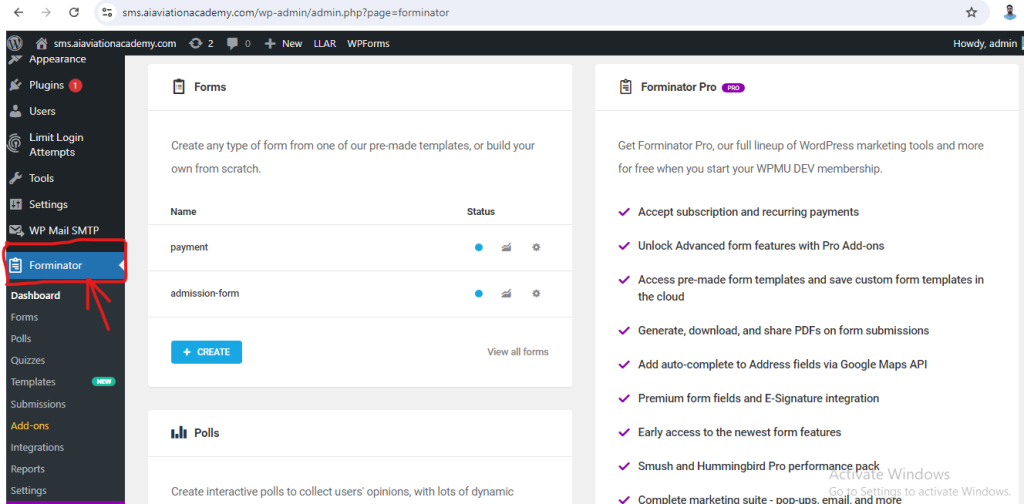
- Navigate to Forminator: From the left-hand menu, click on Forminator.
Step 2: Select the Form
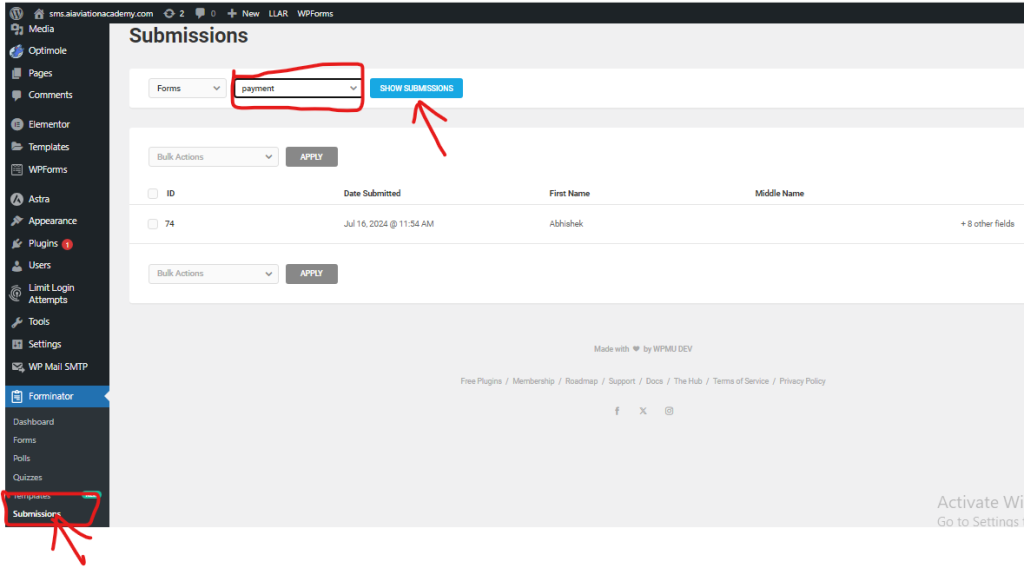
- Click on Submissions: Under the Forminator menu, click on Submissions.
- Choose the Form: Select the form for which you want to view the payment statuses. This will display all the submissions for that form.
Step 3: View Submission Details
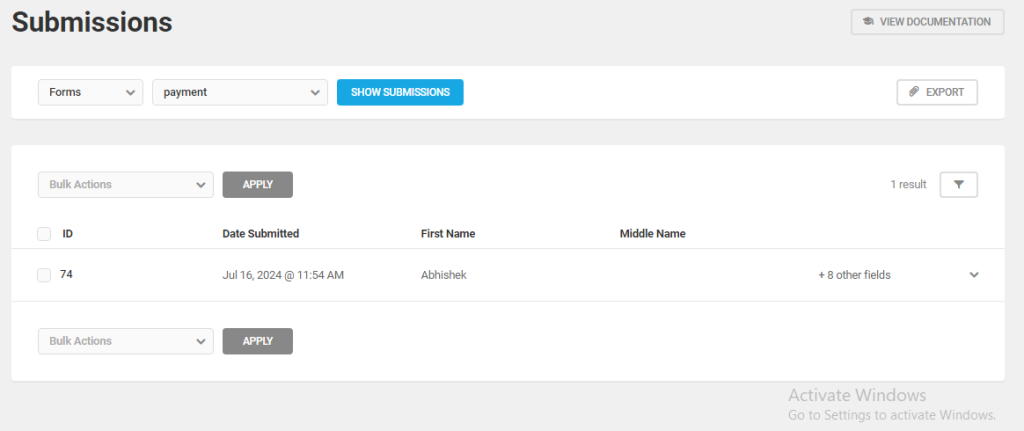
- List of Submissions: You will see a list of all submissions for the selected form.
- View Payment Status: Each submission will have a column or section that shows the payment status. The status can be ‘Completed’, ‘Pending’, ‘Failed’, etc.
Step 4: Detailed Payment Information
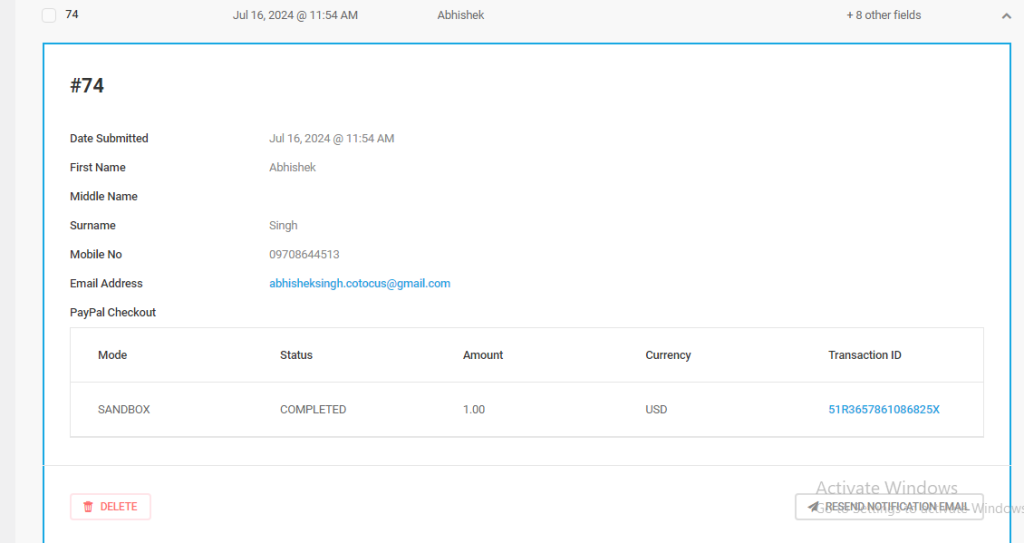
- Click on a Submission: Click on a specific submission to view detailed information about it.
- Payment Details: In the detailed view, you should see more information about the payment, including transaction ID, payer details, and payment status.
Step 5: Filter Submissions by Payment Status (Optional)
- Filter Options: Some versions of Forminator may allow you to filter submissions based on payment status.
- Apply Filter: Use the filter options to show only submissions with a specific payment status, such as ‘Completed’ or ‘Failed’.
Additional Tips
- Email Notifications: If you’ve set up email notifications, you can also check your email for notifications regarding payment statuses.
- Export Submissions: You can export the submissions to a CSV file if you need to analyze the payment statuses in more detail.

How to Enhance Comment Security on WordPress Using WPDiscuz and CAPTCHA
Here’s a step-by-step guide to adding CAPTCHA to your WordPress comment section using WPDiscuz to enhance security: Step 1: Install WPDiscuz Plugin Step 2: Install Google reCAPTCHA Read More