Upgrade & Secure Your Future with DevOps, SRE, DevSecOps, MLOps!

We spend hours on Instagram and YouTube and waste money on coffee and fast food, but won’t spend 30 minutes a day learning skills to boost our careers.
Master in DevOps, SRE, DevSecOps & MLOps!

Learn from Guru Rajesh Kumar and double your salary in just one year.

Get Started Now!

Setting Up Virtual Hosts in XAMPP for Windows: A Step-by-Step Guide

To create a virtual host in XAMPP, you need to follow these steps:

  1. Edit the Hosts File:
  • Locate the hosts file on your system. Typically, it’s located at C:\Windows\System32\drivers\etc\hosts on Windows, or /etc/hosts on Linux.
  • Open the hosts file with a text editor with administrative privileges.
  • Add an entry for your virtual host. The format is 127.0.0.1 yourdomain.local. Replace yourdomain.local with the domain name you want to use for your virtual host.

2. Configure Apache:

  • Navigate to your XAMPP installation directory and locate the httpd-vhosts.conf file. Typically, it’s located at C:\xampp\apache\conf\extra\httpd-vhosts.conf on Windows or /opt/lampp/etc/extra/httpd-vhosts.conf on Linux.
  • Open httpd-vhosts.conf with a text editor.
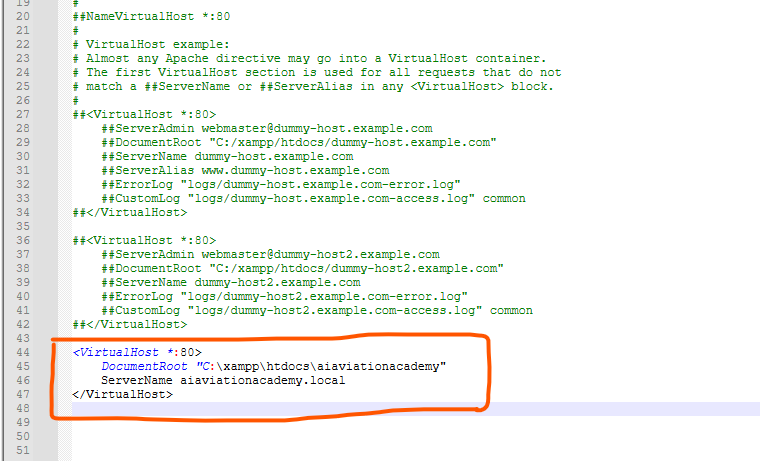
  • Add a virtual host configuration. Here is an example:
<VirtualHost *:80>
    ServerAdmin webmaster@yourdomain.local
    DocumentRoot "C:/xampp/htdocs/yourprojectfolder"
    ServerName yourdomain.local
    ServerAlias www.yourdomain.local
    ErrorLog "logs/yourdomain.local-error.log"
    CustomLog "logs/yourdomain.local-access.log" common
</VirtualHost>
  • Replace yourdomain.local with the domain name you specified in the hosts file.
  • Replace "C:/xampp/htdocs/yourprojectfolder" with the path to the directory containing your project files.
  • You can also customize other settings like ServerAdmin, ErrorLog, and CustomLog as needed.

3. Restart Apache:

  • Open the XAMPP Control Panel.
  • Stop Apache and then start it again to apply the changes.

4. Access Your Virtual Host:

Make sure that the directory specified in the DocumentRoot directive exists and contains your website files.

By following these steps, you should be able to set up a virtual host in XAMPP.

Related Posts

How to Install and Enable GMP Extension in XAMPP PHP on Linux (Step-by-Step Guide)

Introduction If you are using XAMPP PHP on a Linux server and encounter errors like: then this usually means the GMP extension is not installed, not just Read More

Read More

Error : MySQL shutdown unexpectedly. This may be due to a blocked port, missing dependencies , improper privileges, a crash, or a shutdown by another method.

Step 1: First, stop Apache and MySQL in the XAMPP server, then go to C:\xampp\mysql and back up the data folder. Step 2: After backing up the Read More

Read More

You probably tried to upload a file that is too large. Please refer to documentation for a workaround for this limit.

For Upload large size data in using phpmyadmin Do following steps. than after restart wamp server or restart all services Now Upload data using import function in Read More

Read More

phpMyAdmin Troubleshooting Advance Guides

Here are some advanced troubleshooting guides for PHPMyAdmin: 1. Performance Issues Slow Loading Times: 2. Connection Issues Error Messages like “Access Denied for User”: 3. Session Timeout Read More

Read More

ERROR 1153 (08S01) at line 1582: Got a packet bigger than ‘max_allowed_packet’ bytes

When I’m trying to add a big file to my WordPress phpmyadmin database, I keep getting errors like this:- ERROR 1153 (08S01) at line 1582: Got a Read More

Read More

How to Fix the ‘GD Graphic Library’ Error in XAMPP and Enhance Theme Customization

The error message you’re encountering indicates that the GD graphic library is not installed on your local XAMPP server. GD is a PHP extension commonly used for Read More

Read More
Subscribe
Notify of
guest
0 Comments
Oldest
Newest Most Voted
Inline Feedbacks
View all comments
0
Would love your thoughts, please comment.x
()
x