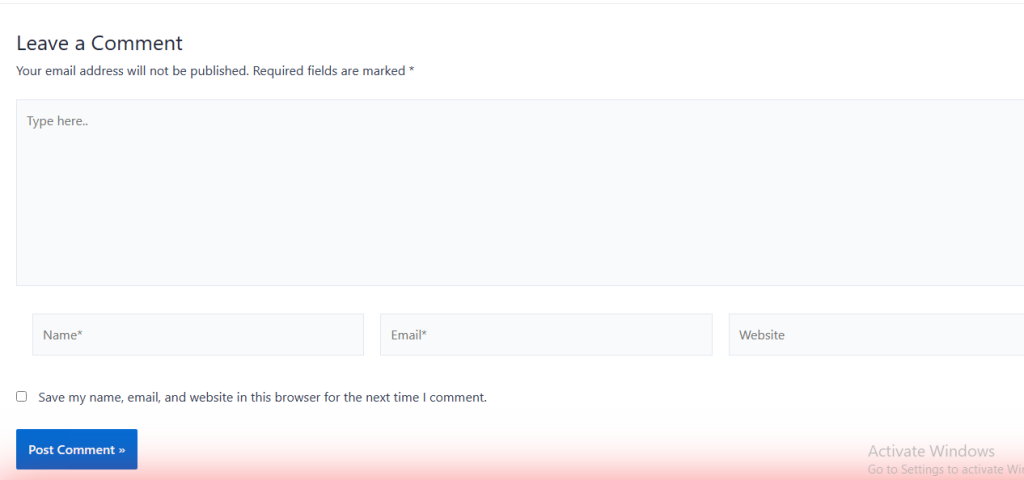
To disable comments on the WordPress blog page, you generally have two options: you can disable comments site-wide, which will remove comments from all pages and posts, or you can disable comments on the specific blog page. Here’s how to do both:
Disable comments site-wide:
- Login to WordPress Dashboard: Log in to your WordPress admin panel.
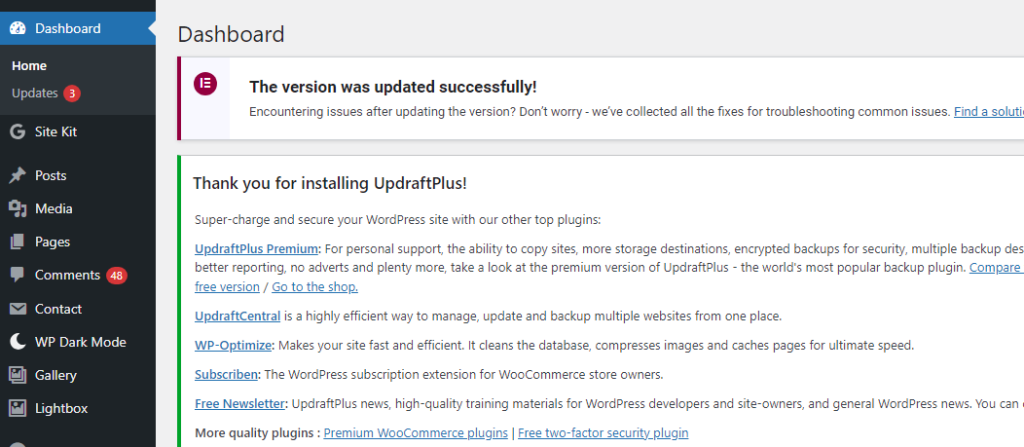
2. Navigate to Settings: Go to “Settings” from the left-hand sidebar.
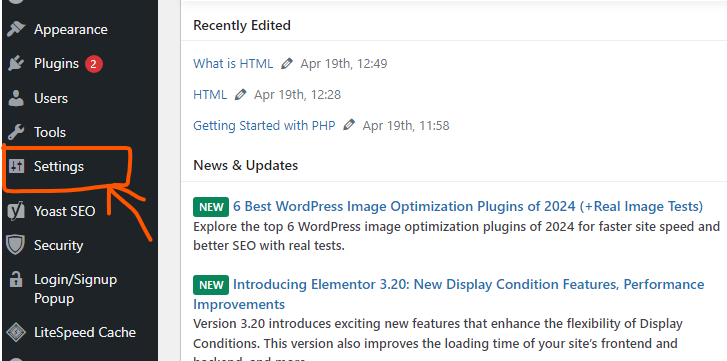
3. Select Discussion Settings: Click on “Discussion” to access the discussion settings for your website.
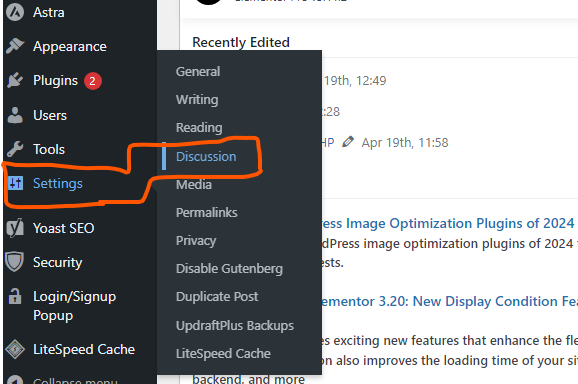
4. Disable Comments: Uncheck the box that says “Allow people to post comments on new articles”. This will disable comments on all future posts and pages, including your blog page.
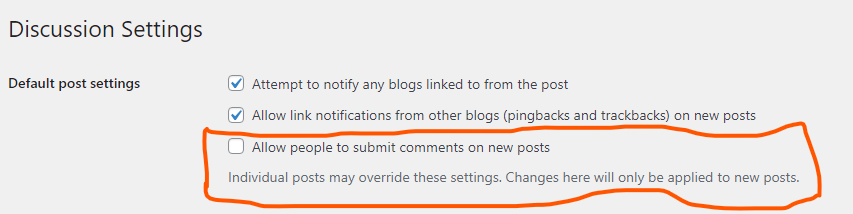
5. Save Changes: Scroll down and click on the “Save Changes” button to apply the settings.

Disable comments on the specific blog page:
- Login to WordPress Dashboard: Log in to your WordPress admin panel.
- Navigate to Pages: Go to “Pages” from the left-hand sidebar.
- Edit Blog Page: Find the page that is set as your blog page. This could be named “Blog”, “Posts”, or something similar. Click on “Edit” to open the page editor.
- Access Discussion Settings: In the page editor, scroll down to find the “Discussion” settings. If you can’t see it, click on “Screen Options” at the top-right corner of the screen and make sure “Discussion” is checked.
- Disable Comments: Uncheck the box that says “Allow comments” to disable comments on this specific blog page.
- Update Page: Once you’ve made the change, click the “Update” button to save your changes.
By following these steps, you can either disable comments site-wide or on the specific blog page in WordPress. Choose the option that best fits your needs.

How to Enhance Comment Security on WordPress Using WPDiscuz and CAPTCHA
Here’s a step-by-step guide to adding CAPTCHA to your WordPress comment section using WPDiscuz to enhance security: Step 1: Install WPDiscuz Plugin Step 2: Install Google reCAPTCHA Read More