Upgrade & Secure Your Future with DevOps, SRE, DevSecOps, MLOps!

We spend hours on Instagram and YouTube and waste money on coffee and fast food, but won’t spend 30 minutes a day learning skills to boost our careers.
Master in DevOps, SRE, DevSecOps & MLOps!

Learn from Guru Rajesh Kumar and double your salary in just one year.

Get Started Now!

How to Create Forms In Flutter

Flutter provides a Form widget to create a form. The form widget acts as a container, which allows us to group and validate the multiple form fields. When you create a form, it is necessary to provide the GlobalKey.

Some of the most common attributes used with the TextField widget are as follows:

  • decoration: It is used to show the decoration around TextField.
  • border: It is used to create a default rounded rectangle border around TextField.
  • labelText: It is used to show the label text on the selection of TextField.
  • hintText: It is used to show the hint text inside TextField.
  • icon: It is used to add icons directly to the TextField.

We are going to see how to use TextField widget in the Flutter app through the following steps:

Step 1: Create a Flutter project in the IDE you used. Here, I am going to use Android Studio.

Step 2: Open the project in Android Studio and navigate to the lib folder. In this folder, open the main.dart file and import the material.dart package as given below:

import ‘package:flutter/material.dart’;  

Step 3: Next, call the main MyApp class using void main run app function and then create your main widget class named as MyApp extends with StatefulWidget:

Step 4: Next, we need to create the Scaffold widget -> Column widget in the class widget build area as given below:

Step 5: Finally, create the TextField widget as the below code.

Now, run the app, you can see the following screen in your Android Emulator. This form contains three field name, phone number, date of birth, and submit button.
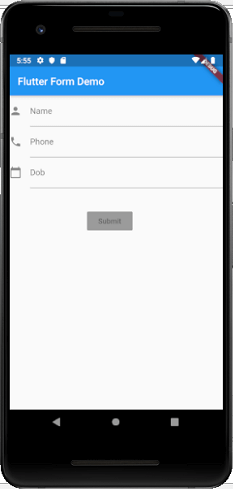
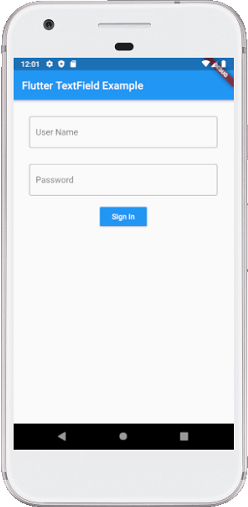
Flutter Forms
Flutter TextField

Related Posts

Top 10 Web Browsers: Features, Pros, Cons & Comparison

Introduction Web browsers are software applications that allow users to access, navigate, and interact with content on the internet. They are essential for browsing websites, streaming media, Read More

Read More

Top 10 Internet Filtering Software: Features, Pros, Cons & Comparison

Introduction Internet filtering software allows families, schools, and businesses to control access to web content, block unsafe websites, and enforce browsing policies. These tools help reduce exposure Read More

Read More

Top 10 Ad Blocking Tools: Features, Pros, Cons & Comparison

Introduction Ad blocking tools are software applications or browser extensions that prevent unwanted advertisements from appearing during browsing or within apps. By filtering out banners, pop‑ups, video Read More

Read More

Top 10 Parental Control Software: Features, Pros, Cons & Comparison

Introduction Parental control software helps parents monitor, manage, and protect their children’s online activities. These tools provide features like content filtering, screen time management, app monitoring, and Read More

Read More

Top 10 Child Safety Monitoring Apps: Features, Pros, Cons & Comparison

Introduction Child safety monitoring apps help parents and guardians keep children safe in the digital and physical world. These tools offer monitoring of online activity, location tracking, Read More

Read More

Top 10 Password Vault Consumer Apps: Features, Pros, Cons & Comparison

Introduction Password vault consumer apps are digital tools that help individuals securely store, manage, and autofill passwords for websites and apps. They reduce the risk of forgotten Read More

Read More
Subscribe
Notify of
guest
0 Comments
Oldest
Newest Most Voted
0
Would love your thoughts, please comment.x
()
x