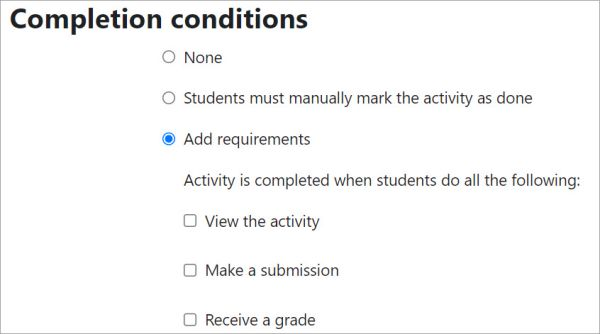
Setting up and managing course completion criteria in Moodle involves defining conditions under which students can be marked as having completed a course. Moodle provides flexible settings to determine how completion is tracked, including conditions such as viewing activities, achieving grades, or manually marking completion. Below are the steps to set up and manage course completion criteria in Moodle:
Step 1: Enable Course Completion Tracking
Before setting any criteria, you need to enable course completion tracking.
- Go to Course Settings:
- Navigate to your course.
- Click on the Gear icon (top-right corner) and select Edit settings.
- Enable Completion Tracking:
- Scroll down to the Completion tracking section.
- Set Completion tracking to Yes.
- Save the changes by clicking the Save and display button.
Step 2: Set Up Completion Criteria for the Entire Course
Once tracking is enabled, you can define course-wide completion settings.
- Go to Course Settings (again, if you’re not already there):
- In the course settings page, under the Completion tracking section, you’ll see the Course completion options.
- Set the Completion criteria:
- Students must view this activity to complete it: This marks completion when students simply access the activity or resource.
- Students must receive a grade to complete this activity: This marks completion when students achieve a specific grade in the activity (e.g., passing a quiz).
- Students must complete this activity to complete the course: You can also add any other specific requirements you want the student to complete, such as a combination of specific grades or participation.
- Set Completion Requirements:
- Depending on the nature of your course, you can add additional completion requirements, such as:
- Completing certain activities or resources.
- Reaching a specific grade threshold.
- Reaching a certain level of participation or activity completion.
- Depending on the nature of your course, you can add additional completion requirements, such as:
Step 3: Set Completion Criteria for Individual Activities
You can also set completion criteria for each activity (quiz, assignment, forum, etc.) in your course.
- Edit the Activity:
- For each activity you want to set completion criteria for, click the Edit dropdown menu and select Edit settings.
- Enable Completion Tracking for the Activity:
- Scroll to the Activity completion section in the activity settings.
- Set the Completion tracking to either:
- Show activity as complete when conditions are met.
- Do not indicate activity completion.
- Set Conditions:
- Set specific conditions such as:
- Require grade: The student must achieve a minimum grade in the activity to mark it complete.
- Require view: The student must view the activity to mark it complete.
- Require submission: The student must submit the activity (for assignments or forums).
- Set specific conditions such as:
- Save and Return to Course:
- After setting up the criteria for that activity, save the changes.
Step 4: Manage Completion Settings
- View Course Completion Status:
- Once your completion criteria are set, you can view the status of each student’s course completion.
- In the course settings, go to Reports > Course completion to view who has completed the course and what activities or criteria they have completed.
- Override Completion:
- If needed, you can manually override the completion status for a student.
- Go to Course administration > Users > Course completion.
- Select the student and manually mark activities or the entire course as completed.
- Completion Tracking Reports:
- You can also use reports to track progress.
- Go to Reports > Activity completion to get a detailed view of which students have completed specific activities.
Additional Tips:
- Completion Tracking Plugins: Moodle has a variety of plugins that can add extra functionality to course completion tracking, such as certifications for completing courses.
- Automated Completion Criteria: Some criteria, such as grade thresholds or activity completion, can be automatically tracked and updated by Moodle, reducing manual work.
- Notifications: You can enable email notifications for students or teachers when completion criteria are met or when there’s progress in the course.
