Upgrade & Secure Your Future with DevOps, SRE, DevSecOps, MLOps!

We spend hours on Instagram and YouTube and waste money on coffee and fast food, but won’t spend 30 minutes a day learning skills to boost our careers.
Master in DevOps, SRE, DevSecOps & MLOps!

Learn from Guru Rajesh Kumar and double your salary in just one year.

Get Started Now!

How to install flywheel

Flywheel is a powerful tool that allows developers to set up and manage local WordPress development environments with ease. To work with Local by Flywheel, follow these steps:

  1. Visit the official Flywheel website at https://getflywheel.com/ and Click on the “DOWNLOAD FOR FREE” button.
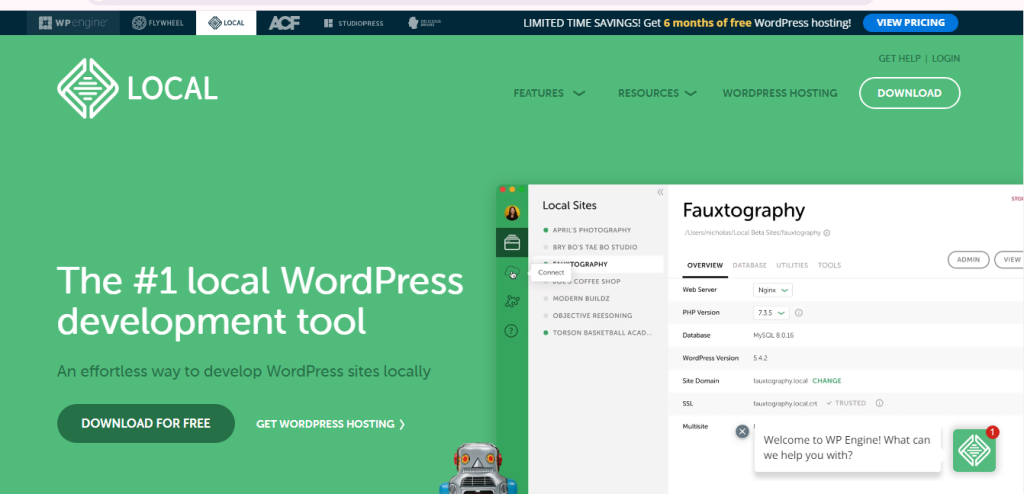
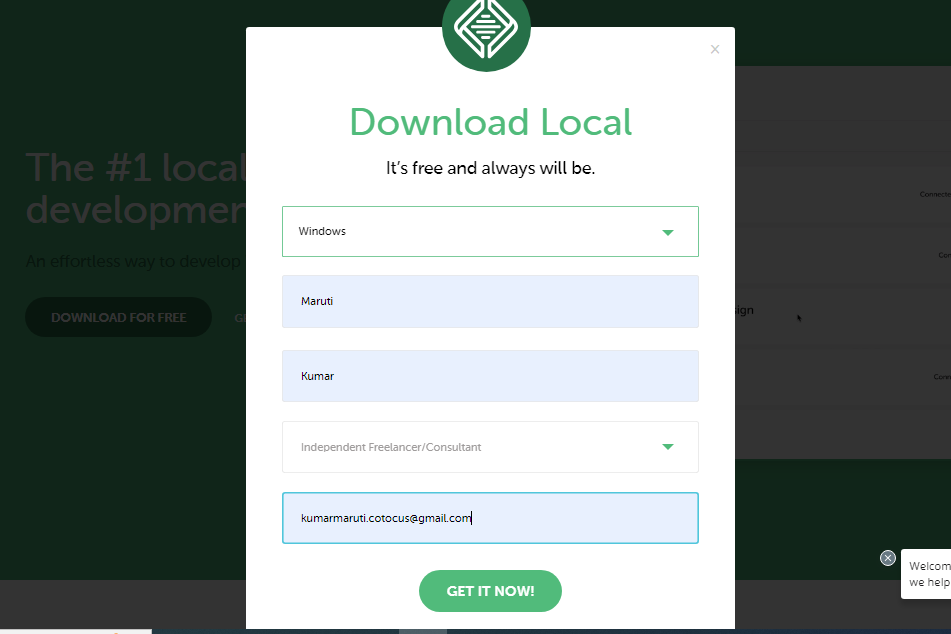
2. Choose a suitable website’s requirements and Fill in your basic information and click to “Get it now” button.
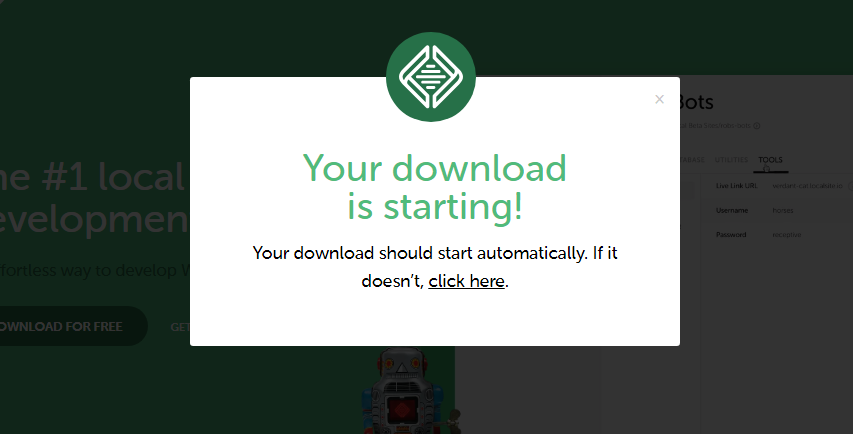
3. After you click “get it now” button the Flywheel download start automatically.
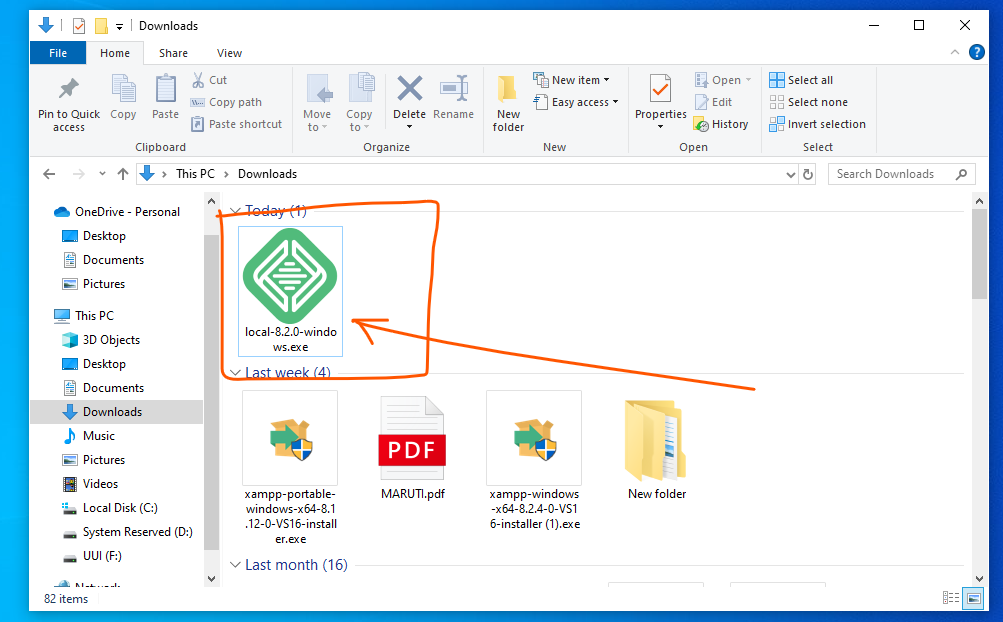
4. Next go to download folder and Click on the “.exe” file to start the installation process.
5. After installation process Flywheel will automatically open, Click on the “Create Site” button Enter your site name, choose a data center location, and select the preferred WordPress version.
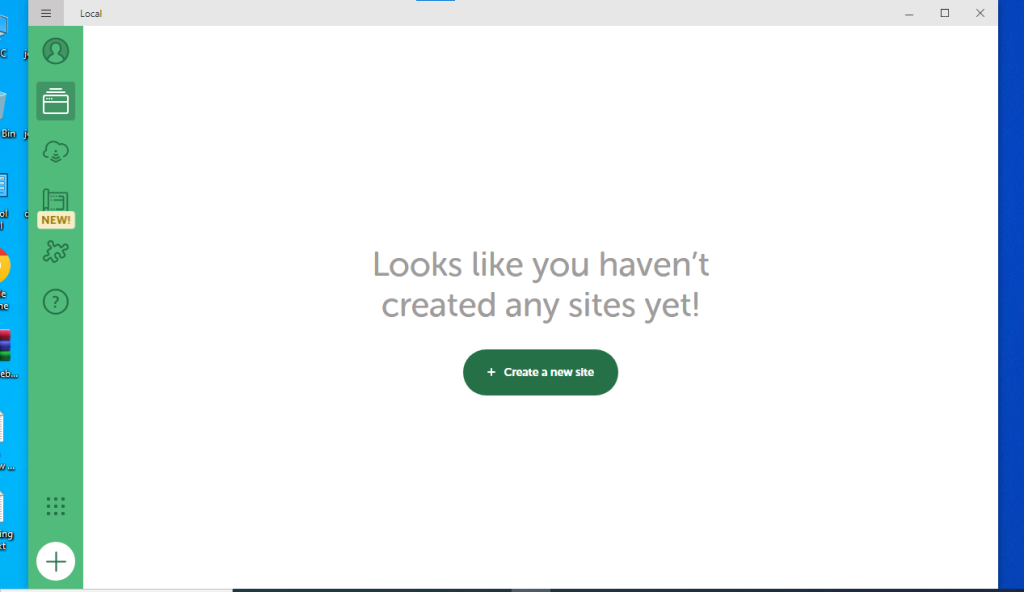
6. Flywheel will automatically set up your WordPress site, and you’ll be redirected to the site dashboard.
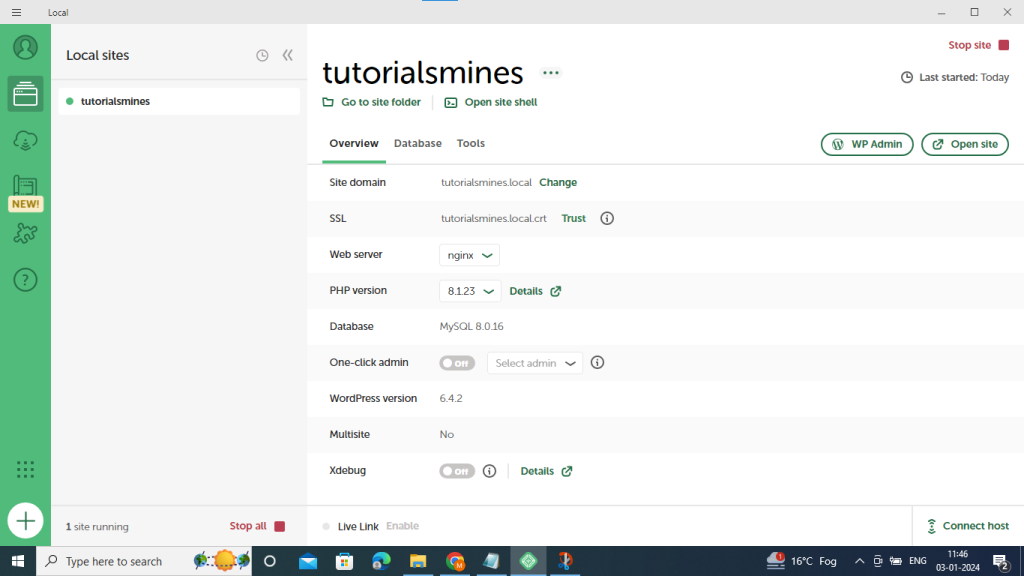
7. Customize your site settings, including themes, plugins, and other configurations, based on your preferences.

8. Flywheel provides a user-friendly interface, making it easy to manage your website and its various features.

Thanks for Visiting

Related Posts

How to Enable User Registration and Manage Roles in WordPress

To enable user registration and manage roles in WordPress, follow these steps: 1. Enable User Registration Step 1: Allow User Registration in WordPress Settings This allows visitors Read More

Read More

Creating a WordPress Post with Google Image Search Results in PHP

In this blog post, we will explore a PHP script that utilizes the Google Custom Search API to search for images based on user-defined keywords. We’ll also Read More

Read More

How to Automatically Generate Image Search Queries Based on Keywords Using Google API

To automatically generate image search queries using Google API, you can use the Custom Search JSON API. Here’s a step-by-step guide: Step 1: Create a Google Cloud Read More

Read More

How to Fix Composer Installation Errors: Resolving Missing PHP Extensions Like ext-sodium

The error you’re seeing indicates that Composer was unable to install the package due to a missing or unsupported PHP extension (in this case, ext-sodium). Here are Read More

Read More

How to Enhance Comment Security on WordPress Using WPDiscuz and CAPTCHA

Here’s a step-by-step guide to adding CAPTCHA to your WordPress comment section using WPDiscuz to enhance security: Step 1: Install WPDiscuz Plugin Step 2: Install Google reCAPTCHA Read More

Read More
Subscribe
Notify of
guest
0 Comments
Oldest
Newest Most Voted
Inline Feedbacks
View all comments
0
Would love your thoughts, please comment.x
()
x