Upgrade & Secure Your Future with DevOps, SRE, DevSecOps, MLOps!

We spend hours on Instagram and YouTube and waste money on coffee and fast food, but won’t spend 30 minutes a day learning skills to boost our careers.
Master in DevOps, SRE, DevSecOps & MLOps!

Learn from Guru Rajesh Kumar and double your salary in just one year.

Get Started Now!

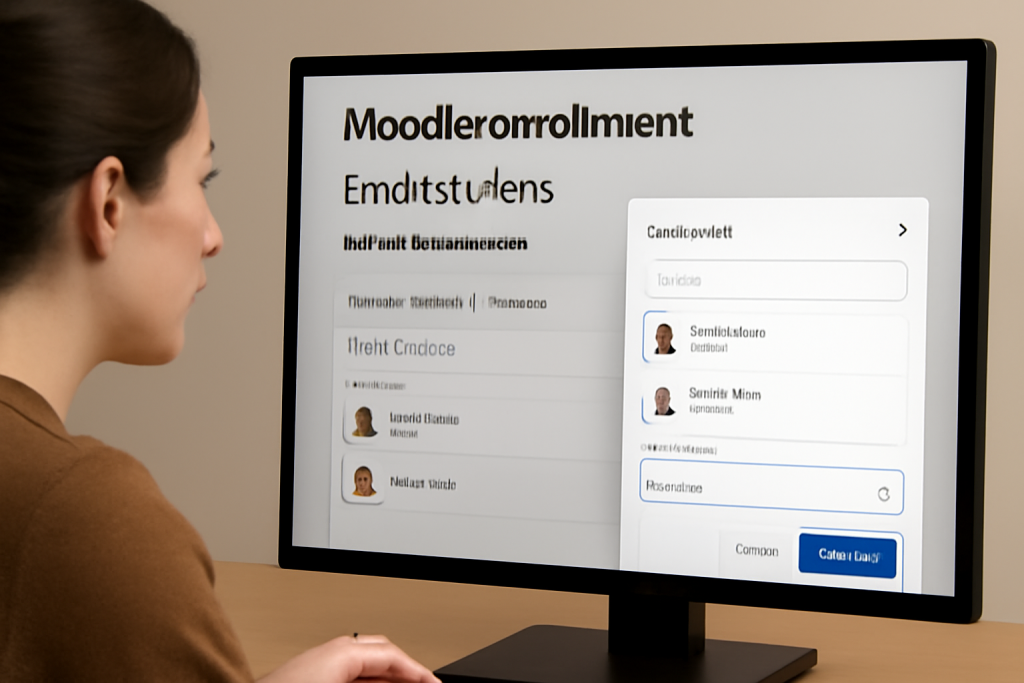
How to enroll students in a Moodle course?

Enrolling students in a Moodle course can be done in several ways, depending on your role (e.g., administrator, teacher, or manager) and the enrollment method configured. Here’s a step-by-step guide:

Method 1: Manual Enrollment (By Teachers/Managers)

  1. Log in to Moodle as a teacher or manager.
  2. Navigate to the course where you want to enroll students.
  3. Click on “Participants” in the course navigation menu.
  4. Click on “Enroll users” (usually a button at the top right).
  5. Search for the user(s) by name or email in the pop-up window.
  6. Select the role (e.g., “Student”) from the dropdown menu.
  7. Click “Enroll” to add the student(s).
  8. Finish by clicking “Finish enrolling users”.

Method 2: Self-Enrollment (Students Join Themselves)

  1. Enable self-enrollment in the course settings:
  • Go to the course → Settings (under Course Administration).
  • Under “Course enrollment methods”, click “Enrollment methods”.
  • Enable “Self enrollment (Student)” (click the eye icon to enable).
  • Configure options like enrollment key (password), duration, etc.

2. Share the enrollment link & key (if set) with students.

3. Students enroll by:

    • Logging into Moodle.
    • Searching for the course or using the direct link.
    • Clicking “Enroll me” and entering the key (if required).

    Method 3: Bulk Enrollment via CSV (Admin/Manager)

    1. Prepare a CSV file with user details (username/email) and course ID.
    2. Go to Site AdministrationUsersUpload users.
    3. Upload the CSV file and map the fields correctly.
    4. Select “Enroll users in course” and specify the course.
    5. Choose the role (e.g., “Student”) and complete the upload.

    Method 4: Cohort Sync (Auto-Enroll Groups)

    1. Create a cohort (admin-only):
    • Go to Site AdministrationUsersCohorts.
    • Add a cohort and manually add users or upload via CSV.

    2. Sync the cohort to the course:

      • In the course, go to ParticipantsEnrollment methods.
      • Add “Cohort sync” and link the cohort.
      • Students in the cohort will be auto-enrolled.

      Method 5: Database Enrollment (External Systems)

      • For advanced setups, Moodle supports LDAP, external databases, or plugins like “Flat File Enrollment” (automated via scripts).

      Additional Notes:

      • Roles Matter: Only users with enrollment permissions (e.g., teachers with the “enrolledusers” capability) can manually enroll students.
      • Enrollment Periods: Set start/end dates in course settings or enrollment methods.
      • Plugins: Extend functionality with plugins like “Group Self-Selection” or “PayPal Enrollment”.

      Related Posts

      Top 10 Web Browsers: Features, Pros, Cons & Comparison

      Introduction Web browsers are software applications that allow users to access, navigate, and interact with content on the internet. They are essential for browsing websites, streaming media, Read More

      Read More

      Top 10 Internet Filtering Software: Features, Pros, Cons & Comparison

      Introduction Internet filtering software allows families, schools, and businesses to control access to web content, block unsafe websites, and enforce browsing policies. These tools help reduce exposure Read More

      Read More

      Top 10 Ad Blocking Tools: Features, Pros, Cons & Comparison

      Introduction Ad blocking tools are software applications or browser extensions that prevent unwanted advertisements from appearing during browsing or within apps. By filtering out banners, pop‑ups, video Read More

      Read More

      Top 10 Parental Control Software: Features, Pros, Cons & Comparison

      Introduction Parental control software helps parents monitor, manage, and protect their children’s online activities. These tools provide features like content filtering, screen time management, app monitoring, and Read More

      Read More

      Top 10 Child Safety Monitoring Apps: Features, Pros, Cons & Comparison

      Introduction Child safety monitoring apps help parents and guardians keep children safe in the digital and physical world. These tools offer monitoring of online activity, location tracking, Read More

      Read More

      Top 10 Password Vault Consumer Apps: Features, Pros, Cons & Comparison

      Introduction Password vault consumer apps are digital tools that help individuals securely store, manage, and autofill passwords for websites and apps. They reduce the risk of forgotten Read More

      Read More
      Subscribe
      Notify of
      guest
      0 Comments
      Oldest
      Newest Most Voted
      0
      Would love your thoughts, please comment.x
      ()
      x