Upgrade & Secure Your Future with DevOps, SRE, DevSecOps, MLOps!

We spend hours on Instagram and YouTube and waste money on coffee and fast food, but won’t spend 30 minutes a day learning skills to boost our careers.
Master in DevOps, SRE, DevSecOps & MLOps!

Learn from Guru Rajesh Kumar and double your salary in just one year.

Get Started Now!

How to Change Your Default Browser on Windows, macOS, and Linux

Changing the default browser on your laptop varies depending on the operating system you’re using. Here are the steps for Windows and macOS:

Windows

  1. Open Settings: Press Windows + I to open the Settings app.
  2. Go to Apps: Click on “Apps”.
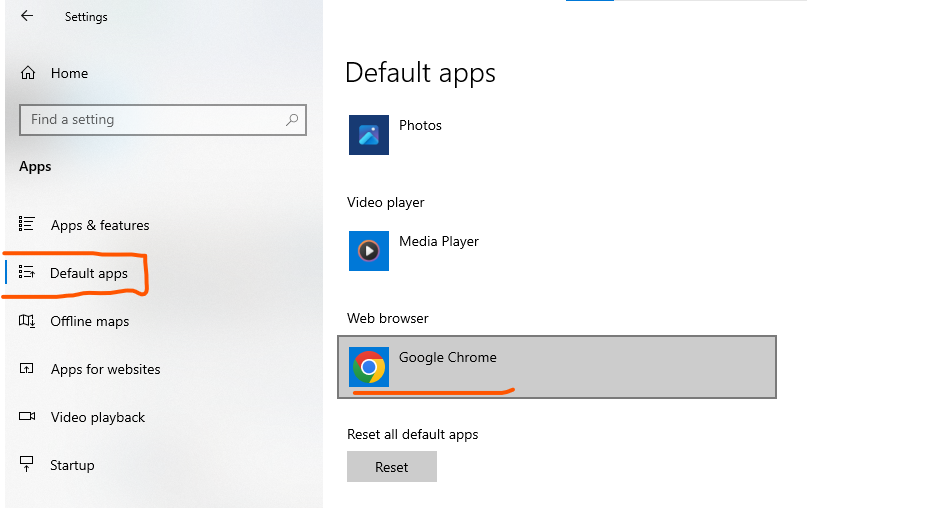
  3. Default Apps: In the left sidebar, click on “Default apps”.
  4. Web Browser: Scroll down to the “Web browser” section and click on the current default browser.
  5. Choose a New Browser: A list of installed browsers will appear. Select the browser you want to set as the default.

macOS

  1. Open System Preferences: Click on the Apple menu in the top-left corner and select “System Preferences”.
  2. Go to General: Click on “General”.
  3. Default Web Browser: In the “General” tab, find the “Default web browser” dropdown menu.
  4. Choose a New Browser: Click on the dropdown menu and select the browser you want to set as the default.

Linux (Ubuntu)

  1. Open Settings: Open the “Settings” application.
  2. Go to Default Applications: Navigate to the “Default Applications” section.
  3. Web Browser: Click on the current default browser and choose the browser you want to set as the default from the list of installed browsers.

Tips

  • Ensure the browser you want to set as default is already installed on your laptop.
  • After changing the default browser, you may want to check browser-specific settings for additional configuration.
  • Restarting your laptop can sometimes help ensure the changes take effect properly.

Following these steps will help you change the default browser on your laptop to the one you prefer.

Related Posts

Top 10 Web Browsers: Features, Pros, Cons & Comparison

Introduction Web browsers are software applications that allow users to access, navigate, and interact with content on the internet. They are essential for browsing websites, streaming media, Read More

Read More

Top 10 Internet Filtering Software: Features, Pros, Cons & Comparison

Introduction Internet filtering software allows families, schools, and businesses to control access to web content, block unsafe websites, and enforce browsing policies. These tools help reduce exposure Read More

Read More

Top 10 Ad Blocking Tools: Features, Pros, Cons & Comparison

Introduction Ad blocking tools are software applications or browser extensions that prevent unwanted advertisements from appearing during browsing or within apps. By filtering out banners, pop‑ups, video Read More

Read More

Top 10 Parental Control Software: Features, Pros, Cons & Comparison

Introduction Parental control software helps parents monitor, manage, and protect their children’s online activities. These tools provide features like content filtering, screen time management, app monitoring, and Read More

Read More

Top 10 Child Safety Monitoring Apps: Features, Pros, Cons & Comparison

Introduction Child safety monitoring apps help parents and guardians keep children safe in the digital and physical world. These tools offer monitoring of online activity, location tracking, Read More

Read More

Top 10 Password Vault Consumer Apps: Features, Pros, Cons & Comparison

Introduction Password vault consumer apps are digital tools that help individuals securely store, manage, and autofill passwords for websites and apps. They reduce the risk of forgotten Read More

Read More
Subscribe
Notify of
guest
0 Comments
Oldest
Newest Most Voted
0
Would love your thoughts, please comment.x
()
x