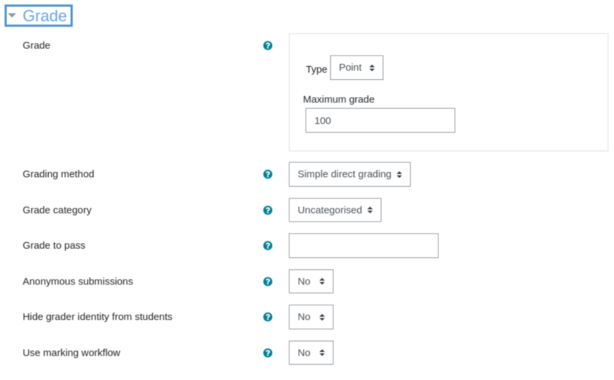
Setting up grades and grading methods in Moodle involves configuring the Gradebook, which organizes and calculates student grades based on course activities. Here’s a step-by-step guide:
1. Access the Gradebook
- Log in to your Moodle course as a teacher or administrator.
- Click on Grades in the course administration block (or via the navigation drawer).
2. Set Up Grading Categories (Optional)
If your course has different types of assessments (e.g., Quizzes, Assignments, Participation), you can organize them into categories:
- In the Gradebook, go to Setup > Gradebook setup.
- Click Add category.
- Enter a Category name (e.g., “Exams,” “Homework”).
- Configure aggregation (e.g., Weighted mean, Natural).
- Set weights if using weighted grading.
- Click Save changes.
3. Configure Aggregation (Grading Method)
Moodle supports multiple grading methods (aggregation strategies):
- In Gradebook setup, click Edit (top-right) > Course grade settings.
- Under Grade category settings, select an Aggregation method:
- Natural – Sum of all grades.
- Weighted mean – Grades multiplied by weights.
- Simple weighted mean – Weights based on point values.
- Mean of grades – Average with no weights.
- Median, Mode, etc.
3. Adjust other settings (e.g., dropping lowest grades, hidden items).
4. Click Save changes.
4. Assign Weights to Grade Items
If using weighted grading:
- In Gradebook setup, locate a grade item/category.
- Enter a Weight (e.g., 30% for exams, 20% for quizzes).
- Ensure weights add up to 100% if using Weighted mean.
5. Configure Individual Activity Grading
For each activity (e.g., Quiz, Assignment):
- Edit the activity settings.
- Set the Maximum grade (e.g., 100, 10, or custom points).
- Choose a grading method (e.g., Rubrics, Scales for assignments).
- Save the activity.
6. Override or Adjust Grades Manually
- In the Grader report, locate the student and grade item.
- Click the grade to edit it or add feedback.
- Use Override if manually changing an auto-calculated grade.
7. Export Grades (Optional)
- Go to Export in the Gradebook.
- Choose a format (e.g., Excel, CSV).
- Download the file.
Key Tips
- Natural vs. Weighted: Use “Natural” for point-based grading, “Weighted mean” for percentages.
- Drop Lowest Grades: Enable in category settings.
- Scales: Use custom scales (e.g., “Poor, Good, Excellent”) under Course administration > Grades > Scales.
- Hide Grades: Use Eye icons in the Gradebook to hide items from students until ready.
