Introduction
Classroom Interactive Whiteboards are digital display systems that allow teachers and learners to write, draw, manipulate content, and interact with multimedia in real time. Combined with touch or stylus input, connectivity, and collaborative software, these solutions replace traditional whiteboards and projectors by offering dynamic, engaging, and interactive learning environments. Rather than static chalk or marker boards, interactive whiteboards transform classrooms into collaborative digital spaces where visual learning, student participation, and content flexibility are amplified.
In , interactive whiteboards have evolved dramatically with cloud integration, AI-assisted lesson enhancement, real-time student response systems, and cross-device collaboration. As education shifts toward blended and hybrid models, these tools help bridge the gap between in‑person and remote learners. Institutions seek solutions that support curriculum standards, analytics, seamless integration with educational software, and future‑proof hardware for longevity in classrooms.
Real-world use cases include:
- Collaborative lessons: Teachers display content, annotate in real time, and invite students to solve problems on the board.
- Remote & hybrid instruction: Shared digital boards synchronize between classroom screens and remote student devices.
- Interactive assessments: Real‑time quizzes, polls, and student responses displayed and tracked on the whiteboard.
- Visual subjects: Science diagrams, math problem solving, language maps, and history timelines dynamically manipulated.
- Media‑rich instruction: Integration of videos, animations, educational apps, and interactive simulations.
What buyers should evaluate:
- Screen size, resolution, and touch responsiveness
- Software features such as annotation, cloud lessons, and student collaboration
- Cross‑platform support (Windows, Chrome OS, iOS, Android)
- Hybrid and remote learning capabilities
- Integration with LMS and classroom tools
- AI‑assisted tools (e.g., automatic clean‑up, speech‑to‑text)
- Security, access control, and privacy protections
- Ease of setup and ongoing maintenance
- Warranty, support, and training options
- Price and total cost of ownership
Best for: K‑12 schools, higher education institutions, corporate training rooms, blended classrooms, and education administrators looking to modernize learning environments.
Not ideal for: Environments with limited technology infrastructure, very small classrooms where mobility tools suffice, or scenarios where a basic projector or TV may be more cost‑effective.
Key Trends in Classroom Interactive Whiteboards
- Cloud‑native collaboration: Teachers and students co‑edit lessons, share boards across devices, and save sessions to cloud storage.
- AI‑powered tools: Speech‑to‑text, automatic note organization, real‑time translation, and formative assessment suggestions.
- Hybrid learning integration: Seamless real‑time sharing with remote participants and breakout engagement tools.
- Cross‑platform support: Full compatibility with Chromebooks, Windows devices, tablets, and smartphones.
- Interactive ecosystems: Lesson libraries, educational app marketplaces, and third‑party content integration.
- Security & privacy focus: Secure classroom networks, role‑based access, and compliance with educational data standards.
- Analytics & insights: Engagement tracking showing participation metrics, attendance, and student response data.
- Touch & pen refinement: Multi‑touch responsiveness with low latency and palm rejection.
- Augmented reality overlays: Emerging support for AR elements projected onto boards for immersive lessons.
- Sustainability & durability: Panels built for classroom longevity with lower power usage and robust warranties.
How We Selected These Tools (Methodology)
- Adoption and recognition among educational institutions.
- Depth of feature sets including collaboration, assessment, and hybrid learning.
- Hardware performance, durability, and display quality.
- Integration with classroom technology ecosystems and LMS platforms.
- Security posture and compliance with privacy standards.
- Scalability for varying classroom sizes and student populations.
- Ease of deployment, training, and ongoing support resources.
- Innovation in AI, cloud capabilities, and future‑ready roadmap.
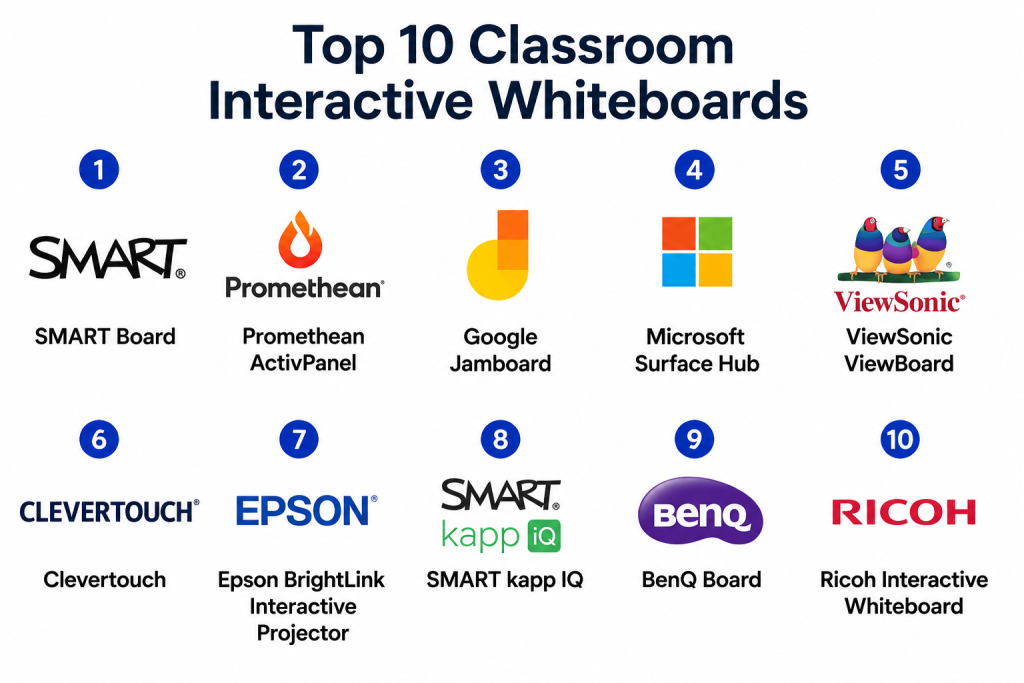
Top 10 Classroom Interactive Whiteboards
1 — SMART Board
Short description: SMART Board is one of the most widely recognized interactive whiteboard solutions, known for its intuitive touch systems, robust collaboration software, and strong presence in K‑12 and higher education environments. It’s designed to support whole‑class instruction, group work, and hybrid learning scenarios.
Key Features
- Multi‑touch interaction with pen and gesture support
- Integrated lesson delivery and annotation software
- Cloud lesson storage and sharing across classrooms
- Screen recording and playback for lesson review
- Real‑time collaboration with student devices
- Built‑in assessment and polling tools
Pros
- Broad ecosystem with curriculum resources
- Strong hybrid learning support
Cons
- Premium price compared to basic alternatives
- Software advanced features may require training
Platforms / Deployment
- Windows / macOS / Chrome OS / iOS / Android
- Cloud / On‑prem
Security & Compliance
Not publicly stated
Integrations & Ecosystem
SMART Board often integrates with learning systems and classroom tools:
- LMS sync
- Video conferencing tools
- Device casting and mirroring
- Classroom management platforms
Support & Community
Extensive documentation, professional development, and educator communities
2 — Promethean ActivPanel
Short description: Promethean’s ActivPanel is a classroom interactive display combining high‑resolution touch screens with teaching software designed to engage learners through interactive lessons, formative assessment, and collaborative features.
Key Features
- High‑resolution interactive display
- Touch and pen input with palm rejection
- Preloaded educational apps
- Lesson creation and distribution tools
- Cloud lesson sharing
- Real‑time student engagement tracking
Pros
- Strong built‑in education software
- Robust hardware for daily classroom use
Cons
- Licensing may add ongoing cost
- Some features require internet connectivity
Platforms / Deployment
- Windows / Chrome OS / Android
- Cloud / On‑prem
Security & Compliance
Not publicly stated
Integrations & Ecosystem
Includes LMS connectivity and third‑party content adapters:
- Cloud lesson repositories
- Assessment tools
- Classroom device casting
- Multimedia content libraries
Support & Community
Training resources and large educator user community
3 — Google Jamboard
Short description: Google Jamboard is a collaborative whiteboard optimized for integration into Google Workspace, supporting real‑time multi‑user input, cloud syncing, and remote participation for hybrid learning.
Key Features
- Real‑time collaboration with multiple users
- Cloud saving via workspace integration
- Touch and stylus support
- Cross‑device access (mobile, desktop)
- Multi‑media insertion
- Remote user participation
Pros
- Tight Google Workspace integration
- Easy setup and use
Cons
- Less education‑specific curriculum tools
- Reliant on internet/cloud connectivity
Platforms / Deployment
- Web / iOS / Android / Chrome OS
- Cloud
Security & Compliance
Not publicly stated
Integrations & Ecosystem
Integrates into broad productivity ecosystem:
- Google Drive
- Classroom sync
- Video conferencing
- Collaborative document editing
Support & Community
Documentation through Workspace resources and user forums
4 — Microsoft Surface Hub
Short description: Microsoft Surface Hub is an interactive digital whiteboard that blends touch, pen, and collaborative tools within a Windows environment. Ideal for hybrid classrooms and corporate training.
Key Features
- Large touch display with pen and gesture input
- Built‑in video conferencing tools
- Windows 10/11 ecosystem
- Whiteboarding and annotation apps
- Cloud collaboration via Teams
- Multi‑participant simultaneous input
Pros
- Native integration with Microsoft Teams and Office tools
- Enterprise‑grade support
Cons
- Higher price bracket
- Windows ecosystem requirement
Platforms / Deployment
- Windows / Surface OS
- Cloud / On‑prem
Security & Compliance
Not publicly stated
Integrations & Ecosystem
Deep integration with Microsoft services:
- Teams
- OneDrive
- Office suite
- Classroom education tools
Support & Community
Enterprise support tiers and training resources
5 — ViewSonic ViewBoard
Short description: ViewSonic ViewBoard offers touch‑enabled interactive panels with a suite of educational tools, cloud connectivity, and broad platform compatibility. It targets K‑12 and corporate education environments.
Key Features
- Multi‑touch display
- Whiteboard and annotation software
- Cloud lesson syncing
- Screen mirroring
- Interactive templates
- Assessment tools
Pros
- Flexible platform support
- Good price‑performance balance
Cons
- Additional software features may require subscription
- Support resources vary by region
Platforms / Deployment
- Windows / Android / Chrome OS
- Cloud / On‑prem
Security & Compliance
Not publicly stated
Integrations & Ecosystem
Integrates with classroom tools and services:
- LMS systems
- Device casting
- Cloud storage
- Assessment platforms
Support & Community
Documentation, setup guides, and support channels
6 — Clevertouch
Short description: Clevertouch interactive whiteboards combine hardware with CleverLive software, emphasizing interactive lessons, cloud storage, and teacher support features. Designed for K‑12 through enterprise training.
Key Features
- Responsive multi‑touch display
- Cloud content access
- Real‑time collaboration tools
- Built‑in apps for teaching
- Lesson sharing
- Remote device integration
Pros
- Strong software ecosystem
- Collaborative tools included
Cons
- Feature set may be overwhelming for basic classrooms
- Subscription licensing
Platforms / Deployment
- Windows / Android
- Cloud / On‑prem
Security & Compliance
Not publicly stated
Integrations & Ecosystem
- Cloud storage
- Classroom management tools
- Assessment integrations
- Device casting
Support & Community
Support portal, training, and documentation
7 — Epson BrightLink Interactive Projector
Short description: Epson’s BrightLink transforms any surface into an interactive whiteboard using short‑throw projection. It blends traditional projection with digital annotation and collaboration features.
Key Features
- Interactive projection with touch/pen input
- Annotation software
- Multi‑screen display
- Cross‑device screen sharing
- Built‑in lesson tools
- Collaborative whiteboard space
Pros
- Converts existing surfaces without dedicated panels
- Cost‑effective for budget deployments
Cons
- Projector setup requires calibration
- Ambient light affects visibility
Platforms / Deployment
- Windows / macOS / Android
- On‑prem / Cloud
Security & Compliance
Not publicly stated
Integrations & Ecosystem
- Screen mirroring
- LMS tools
- Student device interaction
- Collaboration extensions
Support & Community
Support materials and community forums
8 — SMART kapp iQ
Short description: SMART kapp iQ is a digital capture board that allows annotations to be shared in real time to student devices and cloud spaces, ideal for collaborative and hybrid classrooms.
Key Features
- Real‑time device syncing
- Digital capture of annotations
- Touch and pen support
- Cloud session archives
- Classroom sharable links
- Lightweight and flexible form factor
Pros
- Real‑time sharing enhances hybrid lessons
- Simple interface
Cons
- Not a full stand‑alone display
- Limited immersive features
Platforms / Deployment
- iOS / Android / Web
- Cloud
Security & Compliance
Not publicly stated
Integrations & Ecosystem
- LMS connectivity
- Cloud storage
- Video conferencing
- Device casting
Support & Community
Documentation and online support
9 — BenQ Board
Short description: BenQ Boards are interactive panels with education‑oriented software, collaborative features, and robust hardware for busy classroom environments.
Key Features
- Multi‑touch screen
- Annotation and whiteboard tools
- Cloud lesson saving
- Real‑time collaboration
- Built‑in teaching apps
- Screen mirroring
Pros
- Solid hardware quality
- Flexible deployment
Cons
- Advanced features may need subscriptions
- Training recommended
Platforms / Deployment
- Windows / Android / Chrome OS
- Cloud / On‑prem
Security & Compliance
Not publicly stated
Integrations & Ecosystem
- LMS systems
- Classroom software
- Cloud content sharing
- Assessment tools
Support & Community
Customer support and learning resources
10 — Ricoh Interactive Whiteboard
Short description: Ricoh’s interactive whiteboards offer touch interaction combined with Ricoh’s classroom tools and cloud lesson sharing. They are positioned for K‑12 and corporate training setups.
Key Features
- Multi‑touch display
- Annotation software
- Cloud lesson management
- Screen sharing
- Interactive templates
- Device connectivity
Pros
- Broad collaboration features
- Reliable hardware
Cons
- Software suite less intuitive than competitors
- Licensing can add cost
Platforms / Deployment
- Windows / Android
- Cloud / On‑prem
Security & Compliance
Not publicly stated
Integrations & Ecosystem
- LMS integration
- Cloud storage
- Presentation tools
- Collaboration apps
Support & Community
Support documentation and service options
Comparison Table (Top 10)
| Tool Name | Best For | Platform(s) Supported | Deployment | Standout Feature | Public Rating |
|---|---|---|---|---|---|
| SMART Board | K-12 & Higher Ed | Windows, Mac, Chrome, iOS, Android | Cloud/On‑prem | Robust education ecosystem | N/A |
| Promethean ActivPanel | K‑12 classrooms | Windows, Chrome, Android | Cloud/On‑prem | Comprehensive teaching tools | N/A |
| Google Jamboard | Hybrid classrooms | Web, iOS, Android | Cloud | Workspace integration | N/A |
| Microsoft Surface Hub | Hybrid & Enterprise | Windows | Cloud/On‑prem | Teams & Office integration | N/A |
| ViewSonic ViewBoard | General education | Windows, Android, Chrome | Cloud/On‑prem | Flexible platform support | N/A |
| Clevertouch | K‑12 & Training | Windows, Android | Cloud/On‑prem | Cloud content ecosystem | N/A |
| Epson BrightLink | Budget interactive | Windows, Mac, Android | On‑prem/Cloud | Projector‑based interaction | N/A |
| SMART kapp iQ | Hybrid sharing | Web, iOS, Android | Cloud | Real‑time device sync | N/A |
| BenQ Board | Robust classroom use | Windows, Android, Chrome | Cloud/On‑prem | Quality hardware + software | N/A |
| Ricoh Interactive Whiteboard | Classroom & training | Windows, Android | Cloud/On‑prem | Collaboration features | N/A |
Evaluation & Scoring of Classroom Interactive Whiteboards
| Tool Name | Core (25%) | Ease (15%) | Integrations (15%) | Security (10%) | Performance (10%) | Support (10%) | Value (15%) | Weighted Total (0–10) |
|---|---|---|---|---|---|---|---|---|
| SMART Board | 9 | 8 | 8 | 7 | 9 | 8 | 8 | 8.4 |
| Promethean ActivPanel | 8 | 8 | 8 | 7 | 8 | 8 | 7 | 8.0 |
| Google Jamboard | 7 | 9 | 9 | 7 | 7 | 8 | 8 | 8.1 |
| Microsoft Surface Hub | 8 | 7 | 9 | 8 | 8 | 8 | 7 | 8.0 |
| ViewSonic ViewBoard | 8 | 8 | 8 | 7 | 8 | 7 | 8 | 7.9 |
| Clevertouch | 8 | 7 | 8 | 7 | 8 | 7 | 7 | 7.8 |
| Epson BrightLink | 7 | 7 | 7 | 7 | 7 | 7 | 8 | 7.4 |
| SMART kapp iQ | 7 | 8 | 8 | 7 | 7 | 7 | 8 | 7.7 |
| BenQ Board | 8 | 8 | 7 | 7 | 8 | 7 | 7 | 7.9 |
| Ricoh Interactive | 7 | 7 | 7 | 7 | 7 | 7 | 7 | 7.3 |
Interpretation: Scores offer a comparative assessment of features, usability, integrations, security, performance, support, and value. Scores closer to 10 indicate stronger overall suitability for robust interactive classroom deployments.
Which Classroom Interactive Whiteboard Is Right for You?
Solo / Freelancer
- Google Jamboard or SMART kapp iQ are lightweight and cloud‑centric for informal instruction or small group collaboration.
SMB
- ViewSonic ViewBoard or Clevertouch balance cost and features for small schools or training centers.
Mid‑Market
- Promethean ActivPanel or BenQ Board provide comprehensive teaching tools suitable for larger classrooms and hybrid scenarios.
Enterprise
- SMART Board and Microsoft Surface Hub are ideal for district‑wide deployment, multi‑room training, or blended learning ecosystems requiring deep integrations.
Budget vs Premium
- Epson BrightLink provides an interactive solution without dedicated panels.
- Premium suites like SMART Board and Surface Hub offer richer ecosystems and long‑term support.
Feature Depth vs Ease of Use
- Google Jamboard excels in simplicity and cloud collaboration.
- SMART Board and Promethean ActivPanel deliver robust lesson tools and analytics at the cost of a steeper learning curve.
Integrations & Scalability
- Choose boards with LMS integration and cloud sync for growing schools.
- Cross‑platform support simplifies adoption across diverse device fleets.
Security & Compliance Needs
- For districts with strict data privacy policies, verify network access controls, user roles, and remote authentication configurations before deployment.
Frequently Asked Questions (FAQs)
1. How much do classroom interactive whiteboards cost?
Costs range from mid‑tier panel solutions to premium devices with enterprise software. Total cost includes hardware, software licenses, installation, and support.
2. Do interactive whiteboards work with student devices?
Yes. Most solutions enable real‑time shared boards, casting, and cross‑device interaction for collaborative learning.
3. Are interactive whiteboards good for hybrid classrooms?
Absolutely. Cloud collaboration, real‑time sharing, and remote participation tools make them effective for blended learning.
4. Can content be reused and archived?
Most platforms allow lesson saving, archiving, and cloud storage, enabling reuse across sessions and classrooms.
5. Do these boards require internet access?
Cloud features benefit from internet connectivity, though many can operate locally for basic annotation and touch interaction.
6. How hard is the setup?
Basic setup is straightforward, but district or institution‑wide deployment may involve network integration and professional installation.
7. Can I integrate with my LMS?
Yes, many boards offer LMS plugins or integrations to synchronize assignments, assessment data, and lesson resources.
8. What training is needed for teachers?
Training varies by platform complexity. Many vendors provide onboarding resources, certifications, and professional development.
9. Do interactive boards support remote teaching tools?
Yes. Integration with video conferencing, cloud classrooms, and shared boards enhances remote participation.
10. What should I consider before buying?
Consider classroom size, device fleets, LMS integrations, hybrid learning needs, and long‑term support options.
Conclusion
Classroom Interactive Whiteboards are cornerstone tools for modern learning environments. They enhance engagement, support collaborative instruction, and bridge physical and virtual classrooms. When selecting a solution, balance hardware quality, software ecosystem, integrations, and support resources with your institution’s specific needs. Shortlist 2–3 boards, conduct pilots with educators, and assess cloud and LMS compatibility to ensure a seamless and effective implementation.
