How to Install Node.js and npm (Step-by-Step Guide)
Node.js is a JavaScript runtime built on Chrome’s V8 JavaScript engine, and npm (Node Package Manager) is the package manager for Node.js. Here’s how to install them on various operating systems:
For Windows
Method 1: Using the Official Installer
- Download the installer:
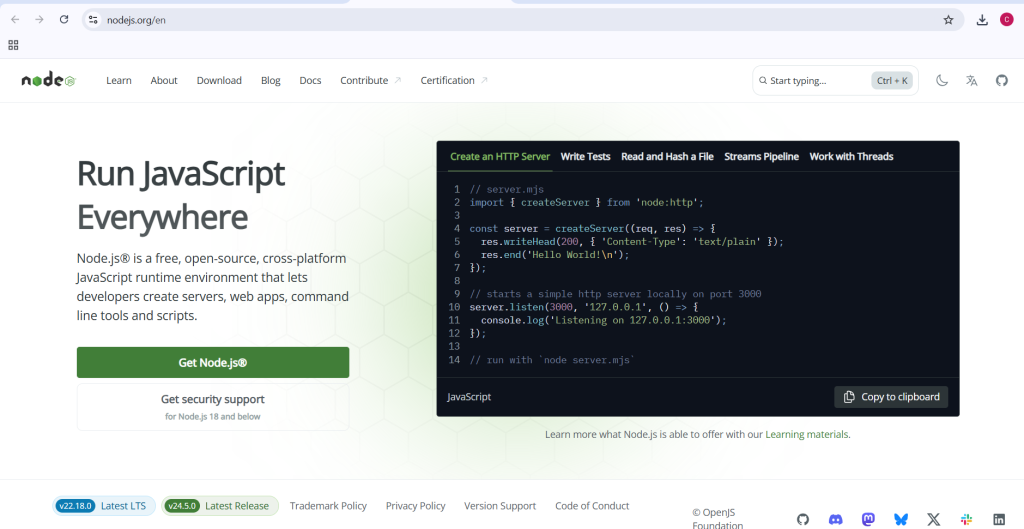
- Go to Node.js official website
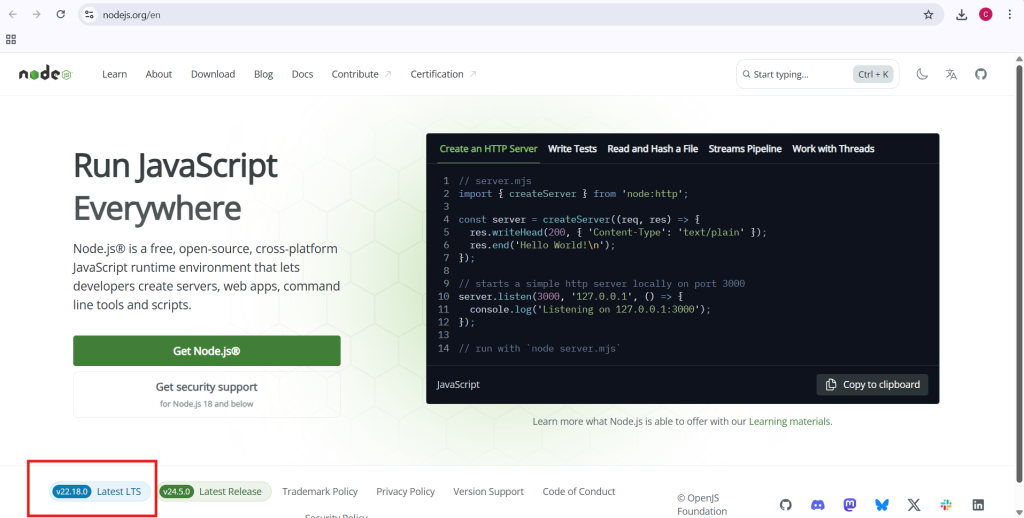
- Download the LTS (Long Term Support) version (recommended for most users)
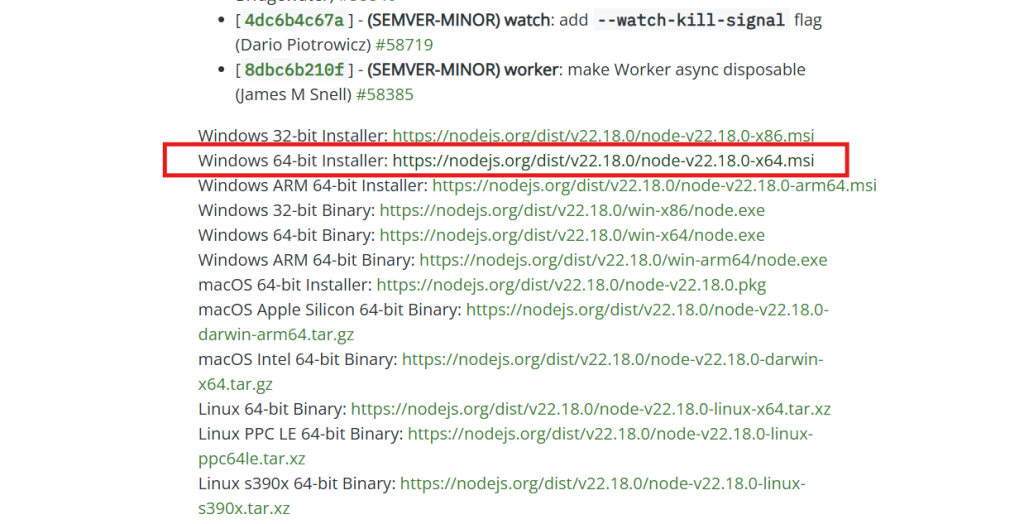
2. Run the installer:
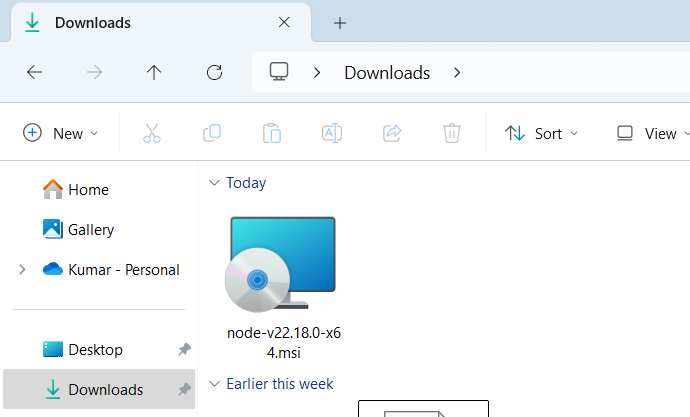
- Double-click the downloaded
.msifile - Follow the installation wizard (you can accept all defaults)
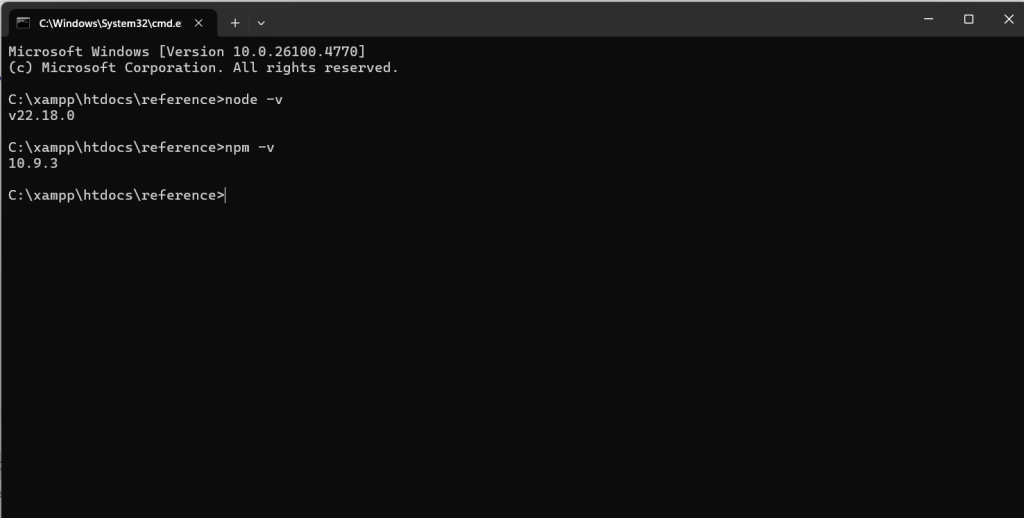
3. Verify installation:
- Open Command Prompt (cmd)
- Type
node -v
npm -v- This should display the installed versions
Method 2: Using Chocolatey (Package Manager)
- Install Chocolatey (if you don’t have it):
@"%SystemRoot%\System32\WindowsPowerShell\v1.0\powershell.exe" -NoProfile -InputFormat None -ExecutionPolicy Bypass -Command "iex ((New-Object System.Net.WebClient).DownloadString('https://chocolatey.org/install.ps1'))" && SET "PATH=%PATH%;%ALLUSERSPROFILE%\chocolatey\bin"- Install Node.js:
choco install nodejsFor macOS
Method 1: Using Official Installer
- Download the installer from Node.js website
- Run the installer and follow the prompts
- Verify installation in Terminal:
   node -v
   npm -v
Method 2: Using Homebrew
- Install Homebrew (if you don’t have it):
/bin/bash -c "$(curl -fsSL https://raw.githubusercontent.com/Homebrew/install/HEAD/install.sh)"- Install Node.js:
brew install nodeFor Linux (Ubuntu/Debian)
Method 1: Using NodeSource PPA (Recommended)
- Install curl (if not already installed):
sudo apt-get install curl- Add NodeSource repository:
curl -fsSL https://deb.nodesource.com/setup_lts.x | sudo -E bash -(Replace lts with the version number you want if needed)
- Install Node.js and npm:
sudo apt-get install -y nodejs- Verify installation:
   node -v
   npm -v
Method 2: Using Package Manager
sudo apt update
sudo apt install nodejs npm
Post-Installation Steps (All OS)
- Update npm (optional but recommended):
npm install -g npm@latest- Check for global npm permissions:
- If you get permission errors, you might need to:
- Reinstall with a version manager (like nvm)
- Change npm’s default directory
- Use
sudo(not recommended for security reasons)
Optional: Install Using Node Version Manager (nvm)
nvm allows you to install and switch between multiple Node.js versions:
- Install nvm:
- Linux/macOS:
curl -o- https://raw.githubusercontent.com/nvm-sh/nvm/v0.39.1/install.sh | bash - Windows: Use nvm-windows
- Install Node.js:
nvm install --lts- Use a specific version:
nvm use 14.17.0That’s it! You now have Node.js and npm installed on your system. You can start creating Node.js applications or install packages using npm.
